READ ME Examples
The e-mail mass mailing is part of the QR bill processor and is typically used after the creation of the QR bill PDF. But it may also be used standalone. This section explains, how to do this.
First, choose the selection HTML mail without PDF.
To produce a simple e-mail mass mailing (regardless if a QR bill PDF is attached or not) you need only two files for the e-mail itself (MailBody.html and MailBody.json) and a very simple Recipients.csv.
MailBody.html contains the text of the e-mail, MailBody.json contains the fromAddress, the fromName and the subject of the e-mail.
An entry in Recipients.csv does only need values for the language (field Language) and the e-mail address (field MailAddress); all other fields are not used.
Configure the QR bill processor as follows:
Test e-mail: as you like, may be left empty, as it may be overriden later onSleep after send: according to your hosterDefault language: GermanMulti-language support: noDon't forget to press the button Save configuration!
Delete old input files by pressing Delete input files.
Upload the following input files:
MailData.json: Upload file MailData.json in directory A.1 - Simple e-mail mass mailing.MailBody.html: Upload file MailBody.html in directory A.1 - Simple e-mail mass mailing.Recipients.csv: Upload file Recipients.csv in directory A.1 - Simple e-mail mass mailing.Pressing Dry run will show this result:
*** Dry run *** (no PDFs stored, no e-mails sent)
Checking language of 4 recipients
Warning: Recipient '2' has language 'it' and the following input data does not contain values for this language:
MailDatajson: subject
MailBody_it.html

Warning: Recipient '3' has language 'en' and the following input data does not contain values for this language:
MailDatajson: subject
MailBody_en.html

Warning: Recipient '4' has language 'fr' and the following input data does not contain values for this language:
MailDatajson: subject
MailBody_fr.html

[ {profile} ] Number of recipients to process: 4
#1.a) Creating PDF suppressed by global flag 'createPdf'.
#1.b) Sending mail suppressed because of option 'dry run'.
#2.a) Creating PDF suppressed by global flag 'createPdf'.
#2.b) Sending mail suppressed because of option 'dry run'.
#3.a) Creating PDF suppressed by global flag 'createPdf'.
#3.b) Sending mail suppressed because of option 'dry run'.
#4.a) Creating PDF suppressed by global flag 'createPdf'.
#4.b) Sending mail suppressed because of option 'dry run'.
[ {profile} ] CONGRATULATIONS: All recipients successfully processed!
The warnings can be ignored, as this execution is without multi-language support.
Remark:
{profile} contains the name of the current profile.Pressing Test run (to your address, indicated below by your.mail@yourmailhoster.com) will show this result:
Test run to email address: 'your.mail@yourmailhoster.com'
[ {profile} ] Number of recipients to process: 1
#1.a) Creating PDF suppressed by global flag 'createPdf'.
#1.b) Mail has been sent successfully to: your.mail@yourmailhoster.com
[ {profile} ] CONGRATULATIONS: All recipients successfully processed!
Download protocol file _qr-bills-protocol.csv_.
The underlines around the text qr-bills-protocol.csv indicate that this text is underlined, it's the download link to the protocol.
Clicking on the link qr-bills-protocol.csv will download the protocol to your browser.
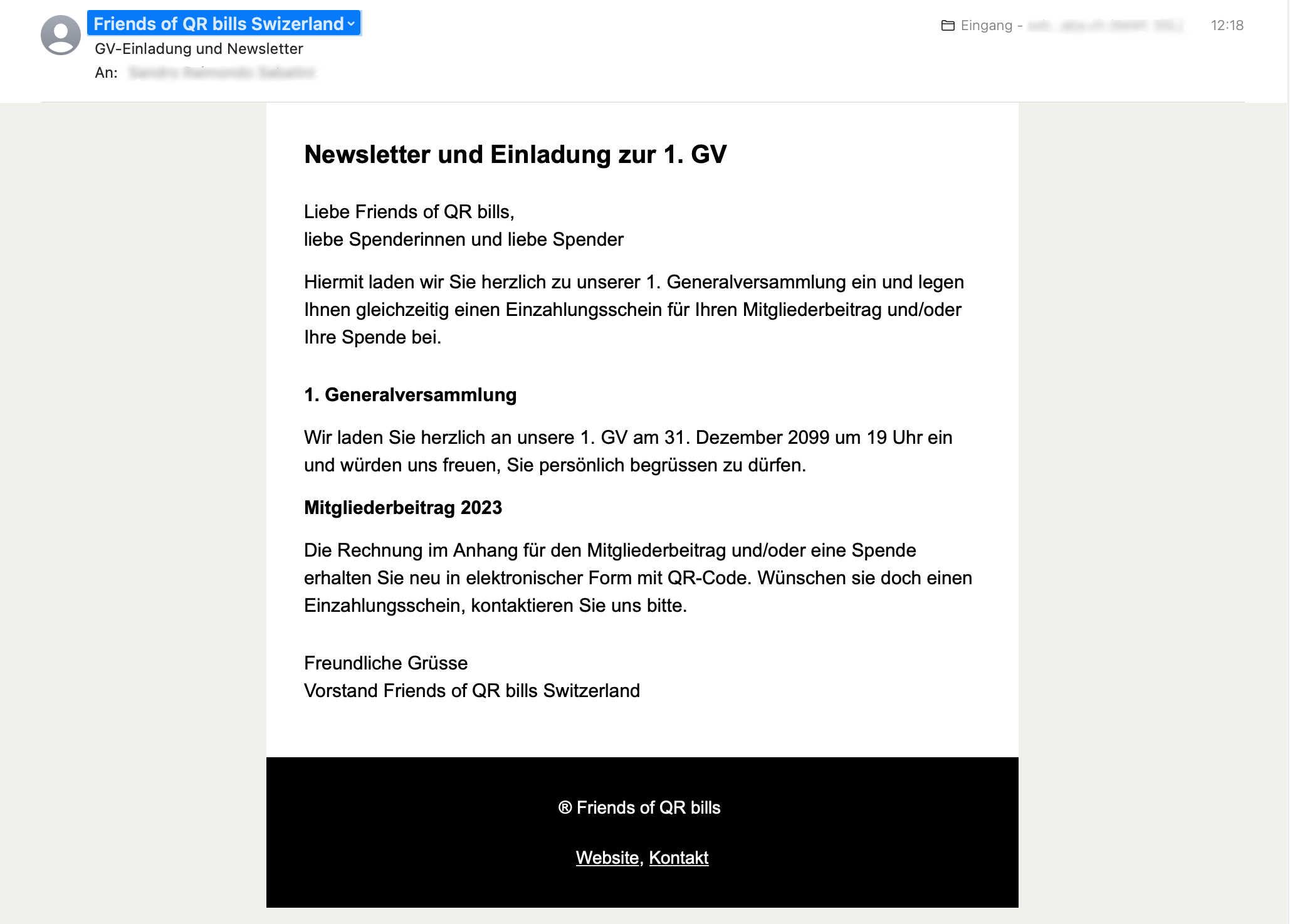
And the e-mail you have received, will look like this:
Pressing Execute will send the mail to all the e-mail addresses in Recipients.csv. The configuration Sleep after send defines how fast the e-mails are sent. The result will look like this:
[ {profile} ] Number of recipients to process: 4
#1.a) Creating PDF suppressed by global flag 'createPdf'.
#1.b) Mail has been sent successfully to: hmuster@example.com
#2.a) Creating PDF suppressed by global flag 'createPdf'.
#2.b) Mail has been sent successfully to: han.muster@example.com
#3.a) Creating PDF suppressed by global flag 'createPdf'.
#3.b) Mail has been sent successfully to: musterag@example.com
#4.a) Creating PDF suppressed by global flag 'createPdf'.
#4.b) Mail has been sent successfully to: mustergmbh@example.com
[ {profile} ] CONGRATULATIONS: All recipients successfully processed!
Download protocol file _qr-bills-protocol.csv_.
The underlines around the text qr-bills-protocol.csv indicate that this text is underlined, it's the download link to the protocol.
Clicking on the link qr-bills-protocol.csv will download the protocol to your browser.
After the processing, the protocol file qr-bills-protocol.csv has the following content:
1,,,hmuster@example.com,false,true
2,,,han.muster@example.com,false,true
3,,,musterag@example.com,false,true
4,,,mustergmbh@example.com,false,true
After the number of the recipient, the columns last name and first name are empty (as not provided in the Recipients.csv), the next column contains the e-mail address, the following column contains false (as no PDF has been created) and the last column contains true, which means the e-mail has been sent.
To produce a e-mail mass mailing with multi-language suport (regardless if a QR bill PDF is attached or not) you need some files for the e-mail itself (MailBody.html, MailBody_[language].html and MailBody.json) and a very simple Recipients.csv.
MailBody.html contains the default text of the e-mail (taken if there is no MailBody_[language].html that fits the language in the recipient), and the optional MailBody_de.html, MailBody_fr.html, MailBody_it.html and MailBody_en.html files for multi-language support. Both of these files contain an example of the usage of the placeholders {{greeting}} and {{amount}}.
MailBody.json contains the fromAddress, the fromName and the subject of the e-mail, where subject contains optional sections that fit the languages of the recipient (only for the languages de and en to show the behavior when a language is not supported and the default is taken.
An entry in Recipients.csv needs non-empty values for the language (field Language), the e-mail address (field MailAddress) and the amount (field Amount) used for the placeholder {{amount}}; the greeting (field Greeting) must be present (defined in the header) for the placeholder {{greeting}}, but may be empty (in this case the placeholder {{greeting}} is just replaced with an empty string); all other fields are not used.
Configure the QR bill processor as follows:
Test e-mail: as you like, may be left empty, as it may be overriden later onSleep after send: according to your hosterDefault language: GermanMulti-language support: yesSave configuration that the following option appears.Additional language(s): EnglishPress the button Save configuration a second time!
Delete old input files by pressing Delete files.
Upload the following input files:
MailData.json: Upload file MailData.json in directory A.2 - E-mail mass mailing with multi-language support.MailBody.html (de): Upload file MailBody.html in directory A.2 - E-mail mass mailing with multi-language support.MailBody_en.html: Upload file MailBody_en.html in directory A.2 - E-mail mass mailing with multi-language support.Recipients.csv: Upload file Recipients.csv in directory A.2 - E-mail mass mailing with multi-language support.Pressing Dry run will show this result:
*** Dry run *** (no PDFs stored, no e-mails sent)
Checking language of 4 recipients
Warning: Recipient '2' has language 'it' and the following input data does not contain values for this language:
MailDatajson: subject
MailBody_it.html

Warning: Recipient '4' has language 'fr' and the following input data does not contain values for this language:
MailDatajson: subject
MailBody_fr.html

[ {profile} ] Number of recipients to process: 4
#1.a) Creating PDF suppressed by global flag 'createPdf'.
#1.b) Sending mail suppressed because of option 'dry run'.
#2.a) Creating PDF suppressed by global flag 'createPdf'.
#2.b) Sending mail suppressed because of option 'dry run'.
#3.a) Creating PDF suppressed by global flag 'createPdf'.
#3.b) Sending mail suppressed because of option 'dry run'.
#4.a) Creating PDF suppressed by global flag 'createPdf'.
#4.b) Sending mail suppressed because of option 'dry run'.
[ {profile} ] CONGRATULATIONS: All recipients successfully processed!
The warnings show that the recipients with index 2 (language is "it") and index 4 (language is "fr") have languages that have no multi-language support for the field subject in MailData.json and the file MailBody.html.
For these recipient the default language (German) will be used.
Pressing Test run (to your address) has the same result as in A.1 - Simple e-mail mass mailing.
Pressing Execute will send the mail to all the e-mail addresses in Recipients.csv; the e-mail subject and body are in the recipient's language (except for fr and it, where they are in German, the language of the default entry). Again, the configuration Sleep after send defines how fast the e-mails are sent. The status section shows the same as in A.1 - Simple e-mail mass mailing.
Again, clicking on the link qr-bills-protocol.csv will download the protocol to your browser.
The protocol contains the same as in A.1 - Simple e-mail mass mailing.
In this section, all the examples support multi-language (for the languages "de" and "en"). If multi-language support is not required, then just set the option Multi-language support to no.
First, choose the selection QR bill PDF with payment slip.
Configure the QR bill processor as follows:
Currency: may have any valuePrint amount: NoPrint 'UltimateDebtor': noAppend reference: noSend e-mail: yesTest e-mail: as you like, may be left empty, as it may be overriden later onSleep after send: according to your hosterDefault language: GermanMulti-language support: yesAdditional language(s): EnglishDon't forget to press the button Save configuration!
Delete old input files by pressing Delete input files.
Upload the following input files:
PdfData.json: Upload file PdfData.json in directory B.1 - QR bill without debtor and amount.PdfTemplate.pdf (de): Upload file PdfTemplate.pdf in directory B.1 - QR bill without debtor and amount.PdfTemplate_en.pdf: Upload file PdfTemplate_en.pdf in directory B.1 - QR bill without debtor and amount.CreditorInformation.json: Upload file CreditorInformation.json in directory B.1 - QR bill without debtor and amount.AdditionalInformation.json: Upload file AdditionalInformation.json in directory B.1 - QR bill without debtor and amount.MailData.json: Upload file MailData.json in directory B.1 - QR bill without debtor and amount.MailBody.html (de): Upload file MailBody.html in directory B.1 - QR bill without debtor and amount.MailBody_en.html: Upload file MailBody_en.html in directory B.1 - QR bill without debtor and amount.Recipients.csv: Upload file Recipients.csv in directory B.1 - QR bill without debtor and amount.Pressing Dry run QR bills will show this result:
*** Dry run *** (no PDFs stored, no e-mails sent)
Checking language of 4 recipients
Warning: Recipient '2' has language 'it' and the following input data does not contain values for this language:
AdditionalInformationjson: additionalInformation
PdfTemplate_it.pdf
PdfData.json: date
MailDatajson: subject
MailData.json: attachmentName
MailBody_it.html

Warning: Recipient '4' has language 'fr' and the following input data does not contain values for this language:
AdditionalInformationjson: additionalInformation
PdfTemplate_fr.pdf
PdfData.json: date
MailDatajson: subject
MailData.json: attachmentName
MailBody_fr.html

[ {profile} ] Number of recipients to process: 4
#1.a) Writing PDF suppressed because of option 'dry run'.
#1.b) Sending mail suppressed because of option 'dry run'.
#2.a) Writing PDF suppressed because of option 'dry run'.
#2.b) Sending mail suppressed because of option 'dry run'.
#3.a) Writing PDF suppressed because of option 'dry run'.
#3.b) Sending mail suppressed because of option 'dry run'.
#4.a) Writing PDF suppressed because of option 'dry run'.
#4.b) Sending mail suppressed because of option 'dry run'.
[ {profile} ] CONGRATULATIONS: All recipients successfully processed!
The warnings can be ignored, there is no multi-language support for it and fr; these recipients will receive the e-mail and the PDF in the default language German.
Pressing Test run (to your address, indicated below by your.mail@yourmailhoster.com) will show this result:
Test run to email address: 'your.mail@yourmailhoster.com'
[ {profile} ] Number of recipients to process: 1
#1.a) PDF for 'Muster Hans+Hanna' created
#1.b) Mail has been sent successfully to: your.mail@yourmailhoster.com
[ {profile} ] CONGRATULATIONS: All recipients successfully processed!
Download protocol file _qr-bills-protocol.csv:.
Download _ZIP archive_.
The underlines around the texts qr-bills-protocol.csv and ZIP archive indicate that these texts are underlined; these are the download links to the protocol and the ZIP archive containing the created PDFs.
Clicking on the link qr-bills-protocol.csv will download the protocol to your browser.
Clicking on the link ZIP archive will download the ZIP archive to your browser.
And the e-mail you have received, is the same as in A.1 - Simple e-mail mass mailing.
Pressing Execute will send the mail to all the e-mail addresses in Recipients.csv. The configuration Sleep after send defines how fast the e-mails are sent.
Remark: For the first trials, configure Send e-mail to no and look into the ZIP archive whether the created PDF files are like you expect them.
The result will look like this:
[ {profile} ] Number of recipients to process: 4
#1.a) PDF for 'Muster Hanna' created
#1.b) Mail has been sent successfully to: hmuster@example.com
#2.a) PDF for 'Muster Han' created
#2.b) Mail has been sent successfully to: han.muster@example.com
#3.a) PDF for 'Muster Hans' created
#3.b) Mail has been sent successfully to: musterag@example.com
#4.a) PDF for 'Muster (-Müsterli) c/o Hans' created
#4.b) Mail has been sent successfully to: mustergmbh@example.com
[ {profile} ] CONGRATULATIONS: All recipients successfully processed!
Download protocol file qr-bills-protocol.csv.
Download ZIP archive.
(As the mail addresses do not exist, nobody receives an e-mail.)
The underlines around the texts qr-bills-protocol.csv and ZIP archive indicate that these texts are underlined; these are the download links to the protocol and the ZIP archive containing the created PDFs.
Clicking on the link qr-bills-protocol.csv will download the protocol to your browser.
Clicking on the link ZIP archive will download the ZIP archive to your browser.
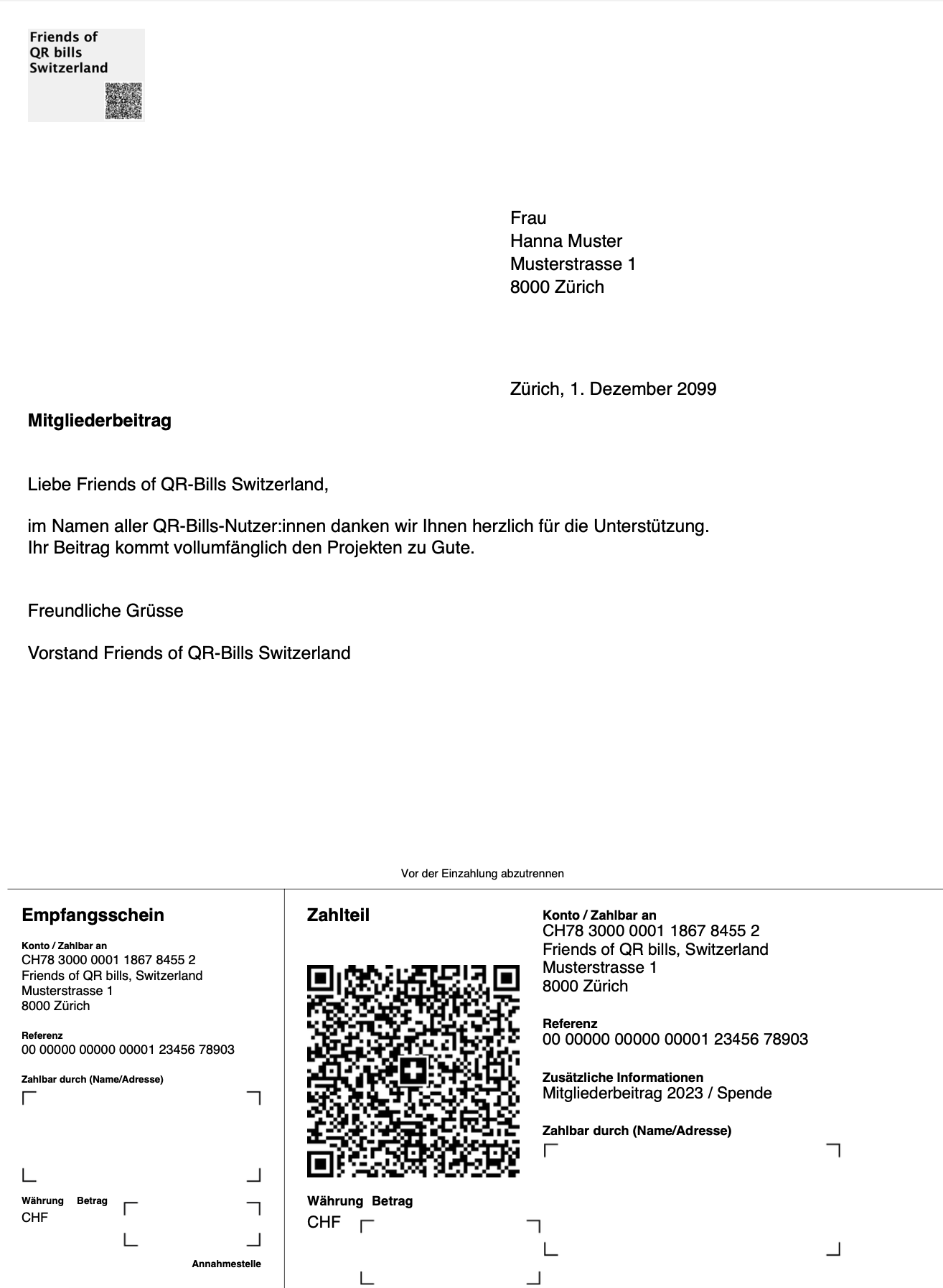
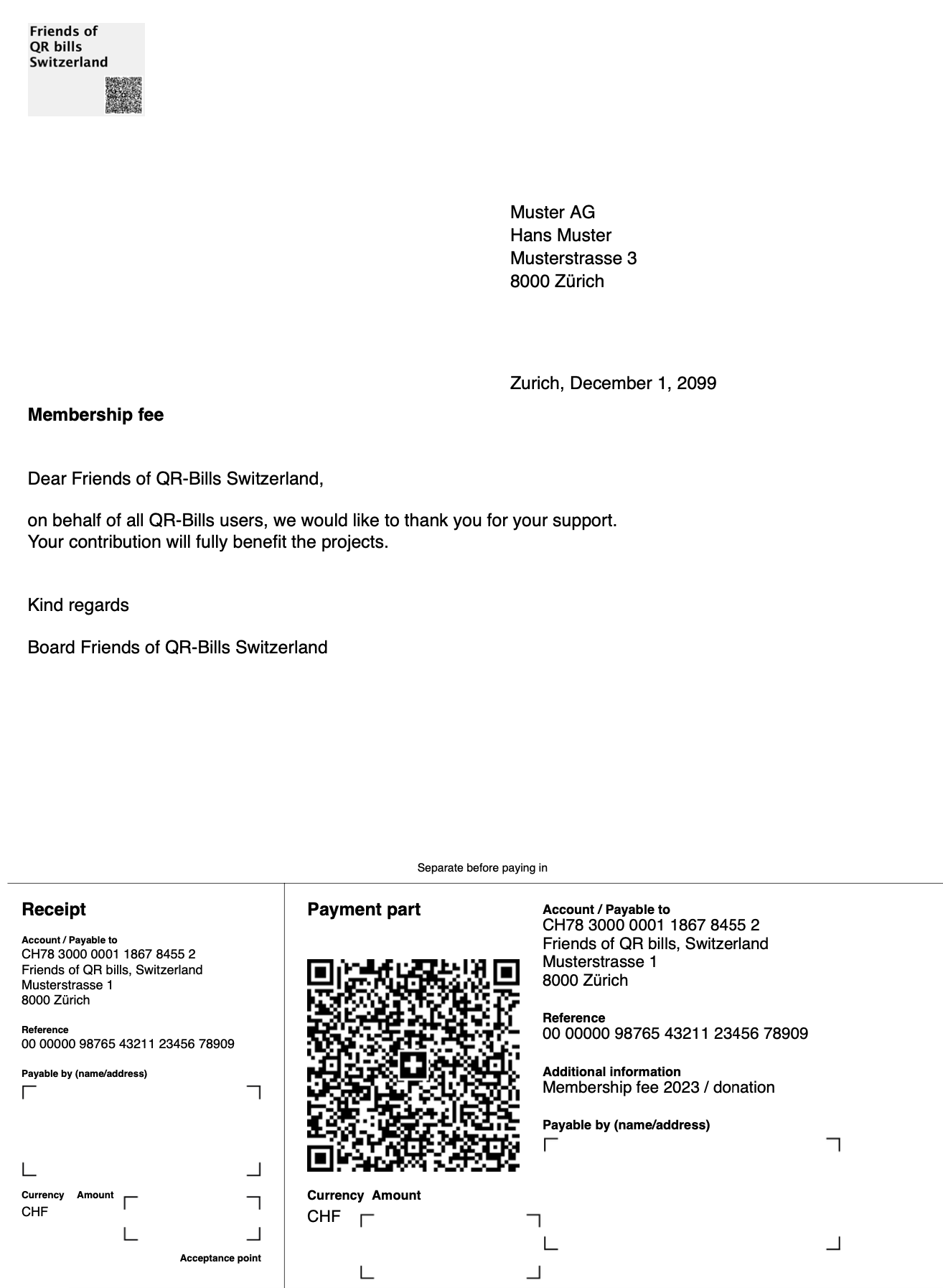
The PDFs created in the output folder look like this:
1 (no company, but salutation)The name of the PDF in the ZIP archive is qr-bill-1-Muster-Hanna-hmuster@example.com.pdf.
3 (company, no salutation)The name of the PDF in the ZIP archive is qr-bill-3-Muster-Hans-musterag@example.com.pdf.
After the processing, the protocol file qr-bills-protocol.csv has the following content:
0,Muster,Hanna,hmuster@example.com,true,true
1,Muster,Han,han.muster@example.com,true,true
2,Muster,Hans,musterag@example.com,true,true
3,"Muster (-Müsterli)","c/o Hans",true,true
Index 1 contains the last name, index 2 contains the first name, index 3 contains the e-mail address, index 4 contains true, which means the PDF has been created, and index 5 contains true, which means the e-mail has been sent.
Configure the QR bill processor as follows:
Currency: CHFPrint amount: Amount (between 0.00 and 500.00): 184.75Print 'UltimateDebtor': yesAppend reference: noSend e-mail: yesTest e-mail: as you like, may be left empty, as it may be overriden later onSleep after send: according to your hosterDefault language: GermanMulti-language support: yesAdditional language(s): EnglishDon't forget to press the button Save configuration!
Delete old input files by pressing Delete input files.
Upload the following input files:
PdfData.json: Upload file PdfData.json in directory B.2 - QR bill with debtor and global amount.PdfTemplate.pdf: Upload file PdfTemplate.pdf in directory B.2 - QR bill with debtor and global amount.PdfTemplate_en.pdf: Upload file PdfTemplate_en.pdf in directory B.2 - QR bill with debtor and global amount.CreditorInformation.json: Upload file CreditorInformation.json in directory B.2 - QR bill with debtor and global amount.AdditionalInformation.json: Upload file AdditionalInformation.json in directory B.2 - QR bill with debtor and global amount.MailData.json: Upload file MailData.json in directory B.2 - QR bill with debtor and global amount.MailBody.html: Upload file MailBody.html in directory B.2 - QR bill with debtor and global amount.MailBody_en.html: Upload file MailBody_en.html in directory B.2 - QR bill with debtor and global amount.Recipients.csv: Upload file Recipients.csv in directory B.2 - QR bill with debtor and global amount.These files are actually exactly the same as in B.1 - QR bill without debtor and amount, the only difference between the examples B.1 and B.2 is the global configuration.
Pressing Dry run will show the same result as in B.1 - QR bill without debtor and amount.
Again, the warnings can be ignored, there is no multi-language support for it and fr; these recipients will receive the e-mail and the PDF in the default language German.
Pressing Test run (to your address) will show the same result as in B.1 - QR bill without debtor and amount.
And the e-mail you have received, is the same as in A.1 - Simple e-mail mass mailing.
Pressing Execute will send the mail to all the e-mail addresses in Recipients.csv. The configuration Sleep after send defines how fast the e-mails are sent.
Remark: For the first trials, configure Send e-mail to no and look into the ZIP archive whether the created PDF files are like you expect them.
The result will look the same as in B.1 - QR bill without debtor and amount. (Again, as the mail addresses to not exist, nobody receives an e-mail.)
The difference to B.1:
184.75.Amount / Betrag of the payment slip contains the amount 184.75.Payable by / Zahlbar durch of the payment slip contains the recipient's address.The PDFs created in the output folder look like this:
1 (no company, but salutation)
3 (company, no salutation)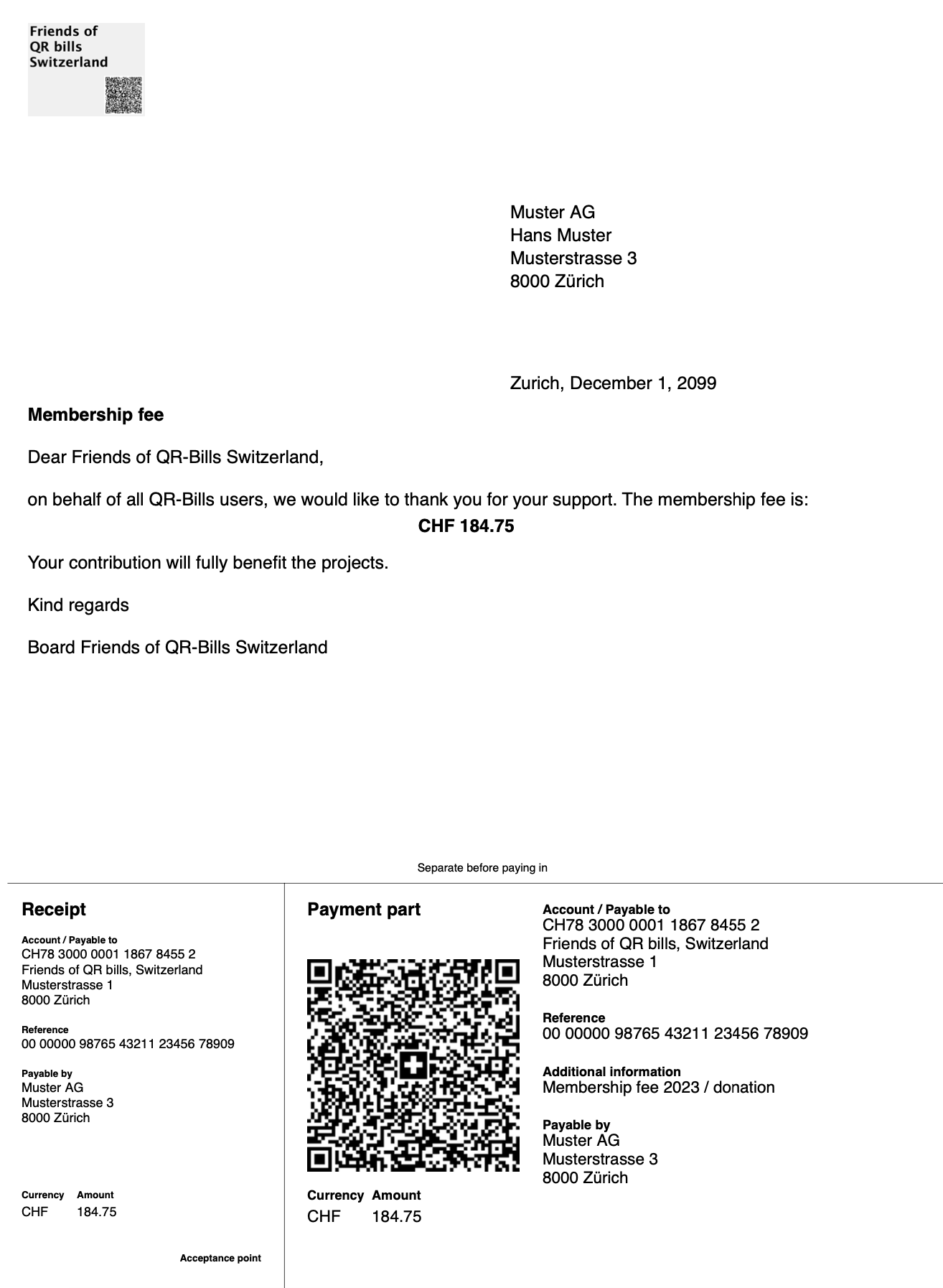
The protocol file qr-bills-protocol.csv in the sub folder with the current date/time in the output folder looks like the one in B.1 - QR bill without debtor and amount.
Configure the QR bill processor as follows:
Currency: CHFPrint amount: Individual amount of recipient, any amount (isn't used)Print 'UltimateDebtor': yesAppend reference: yesSend e-mail: yesTest e-mail: as you like, may be left empty, as it may be overriden later onSleep after send: according to your hosterDefault language: GermanMulti-language support: yesAdditional language(s): EnglishDon't forget to press the button Save configuration!
Delete old input files by pressing Delete input files.
Upload the following input files:
PdfData.json: Upload file PdfData.json in directory B.3 - QR bill with debtor, individual amount and greeting.PdfTemplate.pdf: Upload file PdfTemplate.pdf in directory B.3 - QR bill with debtor, individual amount and greeting.PdfTemplate_en.pdf: Upload file PdfTemplate_en.pdf in directory B.3 - QR bill with debtor, individual amount and greeting.CreditorInformation.json: Upload file CreditorInformation.json in directory B.3 - QR bill with debtor, individual amount and greeting.AdditionalInformation.json: Upload file AdditionalInformation.json in directory B.3 - QR bill with debtor, individual amount and greeting.MailData.json: Upload file MailData.json in directory B.3 - QR bill with debtor, individual amount and greeting.MailBody.html: Upload file MailBody.html in directory B.3 - QR bill with debtor, individual amount and greeting.MailBody_en.html: Upload file MailBody_en.html in directory B.3 - QR bill with debtor, individual amount and greeting.Recipients.csv: Upload file Recipients.csv in directory B.3 - QR bill with debtor, individual amount and greeting. Alternatively, you may upload the file RecipientsWithSemiColon.csv that contains the same fields as the file Recipients.csv but separated by semi-colons instead of commas.These files are actually the same as in B.1 - QR bill without debtor and amount except the file Recipients.csv, which contains now a different amount for every recipient. Another difference is the global configuration.
Pressing Dry run will show the same result as in B.1 - QR bill without debtor and amount.
Again, the warnings can be ignored, there is no multi-language support for it and fr; these recipients will receive the e-mail and the PDF in the default language German.
Pressing Test run (to your address) will show the same result as in B.1 - QR bill without debtor and amount.
And the e-mail you have received, is the same as in A.1 - Simple e-mail mass mailing.
Pressing Execute will send the mail to all the e-mail addresses in Recipients.csv. The configuration Sleep after send defines how fast the e-mails are sent.
Remark: For the first trials, configure Send e-mail to no and look into the ZIP archive whether the created PDF files are like you expect them.
The result will look the same as in B.1 - QR bill without debtor and amount. (Again, as the mail addresses to not exist, nobody receives an e-mail.)
The difference to B.2:
Amount / Betrag of the payment slip contains the individual amount of the recipient.Additional Information / Zusätzliche Informationen of the payment slip contains a second line, the payment reference, as we have set the configuration Append reference to 'AdditionalInformation' to yes.The PDFs created in the output folder look like this:
1 (no company, but salutation)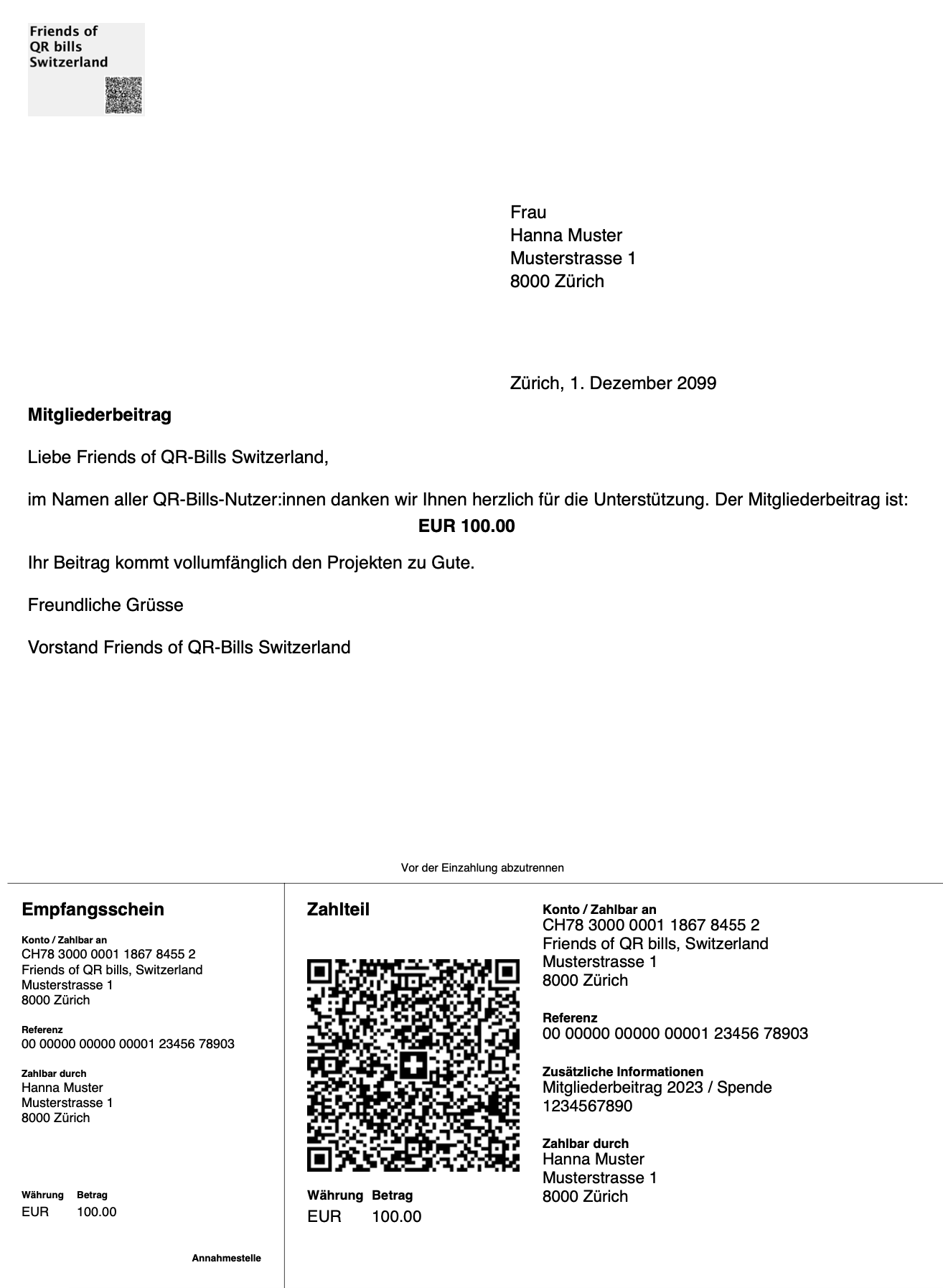
3 (company, no salutation)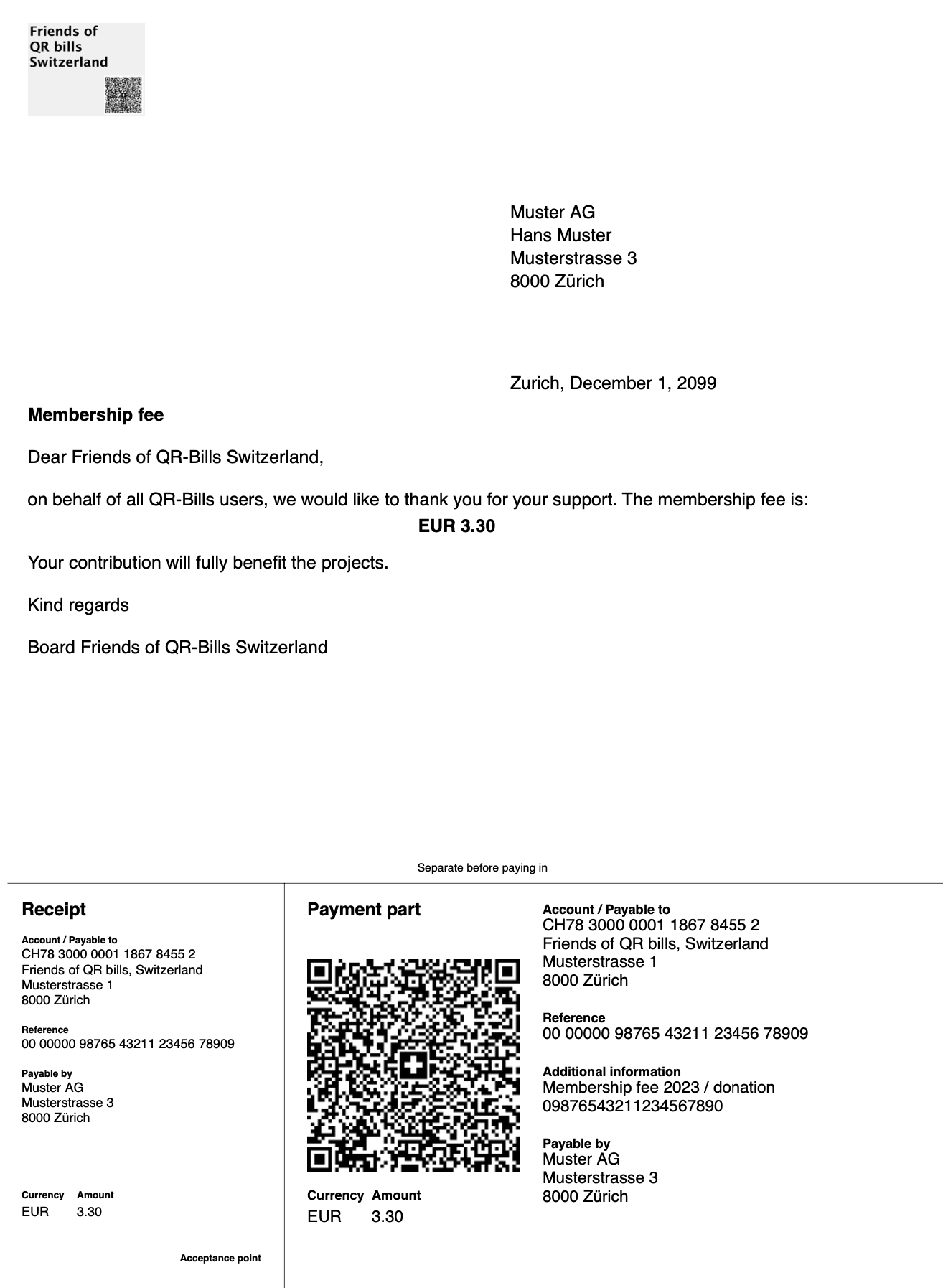
The protocol file qr-bills-protocol.csv in the sub folder with the current date/time in the output folder looks like the one in B.1 - QR bill without debtor and amount.
Configure the QR bill processor as follows:
Currency: EURPrint amount: No, any amount (isn't used)Print 'UltimateDebtor': noAppend reference: yesSend e-mail: yesTest e-mail: as you like, may be left empty, as it may be overriden later onSleep after send: according to your hosterDefault language: GermanMulti-language support: yesAdditional language(s): EnglishDon't forget to press the button Save configuration!
Delete old input files by pressing Delete input files.
Upload the following input files:
PdfData.json: Upload file PdfData.json in directory B.4 - QR bill with BESR-ID.PdfTemplate.pdf: Upload file PdfTemplate.pdf in directory B.4 - QR bill with BESR-ID.PdfTemplate_en.pdf: Upload file PdfTemplate_en.pdf in directory B.4 - QR bill with BESR-ID.CreditorInformation.json: Upload file CreditorInformation.json in directory B.4 - QR bill with BESR-ID.AdditionalInformation.json: This file is not provided in directory B.4 - QR bill with BESR-ID to show the behavior when this optional file is missing. As the configuration Append reference to 'AdditionalInformation' is set to yes, the reference will be printed in this field.MailData.json: Upload file MailData.json in directory B.4 - QR bill with BESR-ID.MailBody.html: Upload file MailBody.html in directory B.4 - QR bill with BESR-ID.MailBody_en.html: Upload file MailBody_en.html in directory B.4 - QR bill with BESR-ID.Recipients.csv: Upload file Recipients.csv in directory B.4 - QR bill with BESR-ID.These files are actually the same as in B.1 - QR bill without debtor and amount except the file CreditorInformation.json, which contains now a BESR-ID, and the file AdditionalInformation.json, which is missing.
Pressing Dry run will show the same result as in B.1 - QR bill without debtor and amount.
Again, the warnings can be ignored, there is no multi-language support for it and fr; these recipients will receive the e-mail and the PDF in the default language German.
Pressing Test run (to your address) will show the same result as in B.1 - QR bill without debtor and amount.
And the e-mail you have received, is the same as in A.1 - Simple e-mail mass mailing.
Pressing Execute will send the mail to all the e-mail addresses in Recipients.csv. The configuration Sleep after send defines how fast the e-mails are sent.
Remark: For the first trials, configure Send e-mail to no and look into the ZIP archive whether the created PDF files are like you expect them.
The result will look the same as in B.1 - QR bill without debtor and amount. (Again, as the mail addresses to not exist, nobody receives an e-mail.)
The difference to B.1:
Reference / Referenz contains in the first 6 positions the BESR-ID followed by the reference of the recipient's entry.Additional information / Zusätzliche Informationen contains the reference of the recipient's entry without the BESR-ID.The PDFs created in the output folder look like this:
1 (no company, but salutation)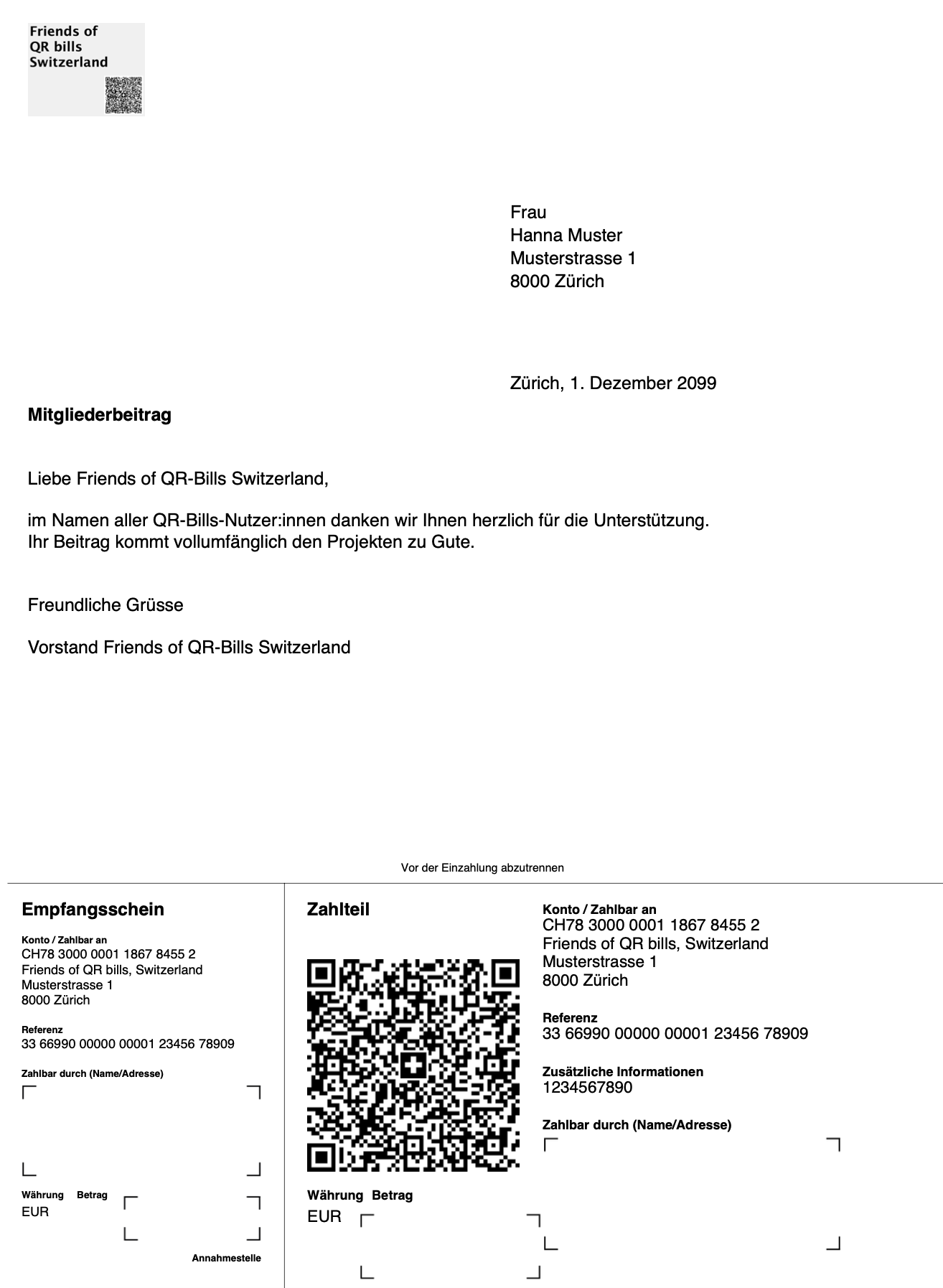
3 (company, no salutation)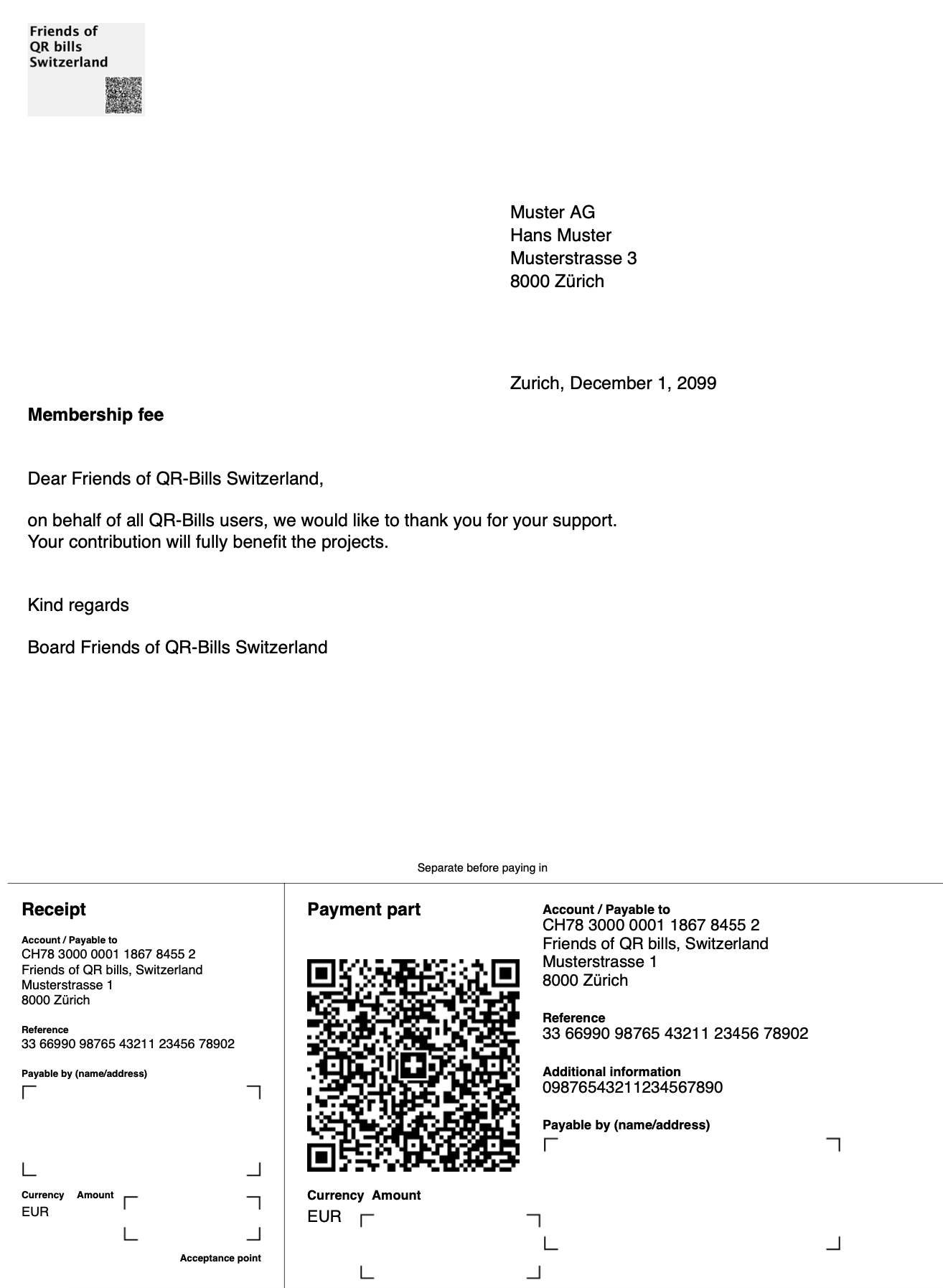
The protocol file qr-bills-protocol.csv in the sub folder with the current date/time in the output folder looks like the one in B.1 - QR bill without debtor and amount.
First, choose the selection QR bill PDF with payment slip.
Configure the QR bill processor as follows:
Currency: EURPrint amount: No, any amount (isn't used)Print 'UltimateDebtor': noAppend reference: noSend e-mail: yesTest e-mail: as you like, may be left empty, as it may be overriden later onSleep after send: according to your hosterDefault language: GermanMulti-language support: yesAdditional language(s): EnglishDon't forget to press the button Save configuration!
(This is actually the same configuration as in B.1 - QR bill without debtor and amount).
Delete old input files by pressing Delete input files.
Upload the following input files:
PdfData.json: Upload file PdfData.json in directory C.1 - QR bill without debtor and amount.PdfTemplate.pdf: Upload file PdfTemplate.pdf in directory C.1 - QR bill without debtor and amount.PdfTemplate_en.pdf: Upload file PdfTemplate_en.pdf in directory C.1 - QR bill without debtor and amount.CreditorInformation.json: Upload file CreditorInformation.json in directory C.1 - QR bill without debtor and amount.AdditionalInformation.json: Upload file AdditionalInformation.json in directory C.1 - QR bill without debtor and amount.MailData.json: Upload file MailData.json in directory C.1 - QR bill without debtor and amount.MailBody.html: Upload file MailBody.html in directory C.1 - QR bill without debtor and amount.MailBody_en.html: Upload file MailBody_en.html in directory C.1 - QR bill without debtor and amount.Recipients.csv: Upload file Recipients.csv in directory C.1 - QR bill without debtor and amount.These files are actually the same as in B.1 - QR bill without debtor and amount, except the file CreditorInformation.json, which contains now a bank iban, and has set checkQrIban to false.
Pressing Dry run will show the same result as in B.1 - QR bill without debtor and amount.
Again, the warnings can be ignored, there is no multi-language support for it and fr; these recipients will receive the e-mail and the PDF in the default language German.
Pressing Test run (to your address) will show the same result as in B.1 - QR bill without debtor and amount.
And the e-mail you have received, is the same as in A.1 - Simple e-mail mass mailing.
Pressing Execute will send the mail to all the e-mail addresses in Recipients.csv. The configuration Sleep after send defines how fast the e-mails are sent.
Remark: For the first trials, configure Send e-mail to no and look into the ZIP archive whether the created PDF files are like you expect them.
The result will look the same as in B.1 - QR bill without debtor and amount. (Again, as the mail addresses to not exist, nobody receives an e-mail.)
The difference to B.1:
Account Payable to / Konto / Zahlbar an contains a bank IBAN.Reference / Referenz is missing (QR bills without QR IBAN must not have a reference.The PDFs created in the output folder look like this:
1 (no company, but salutation)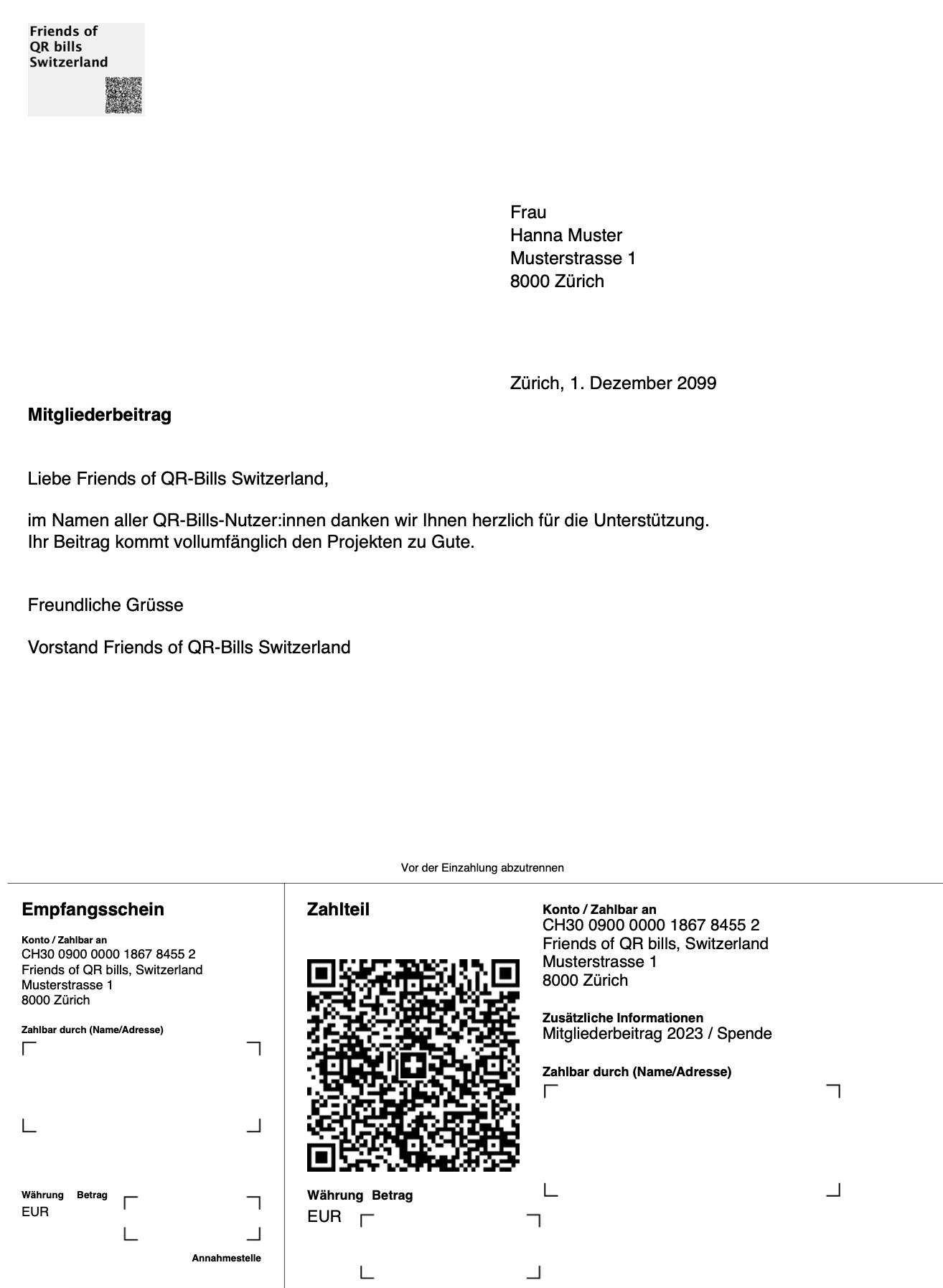
3 (company, no salutation)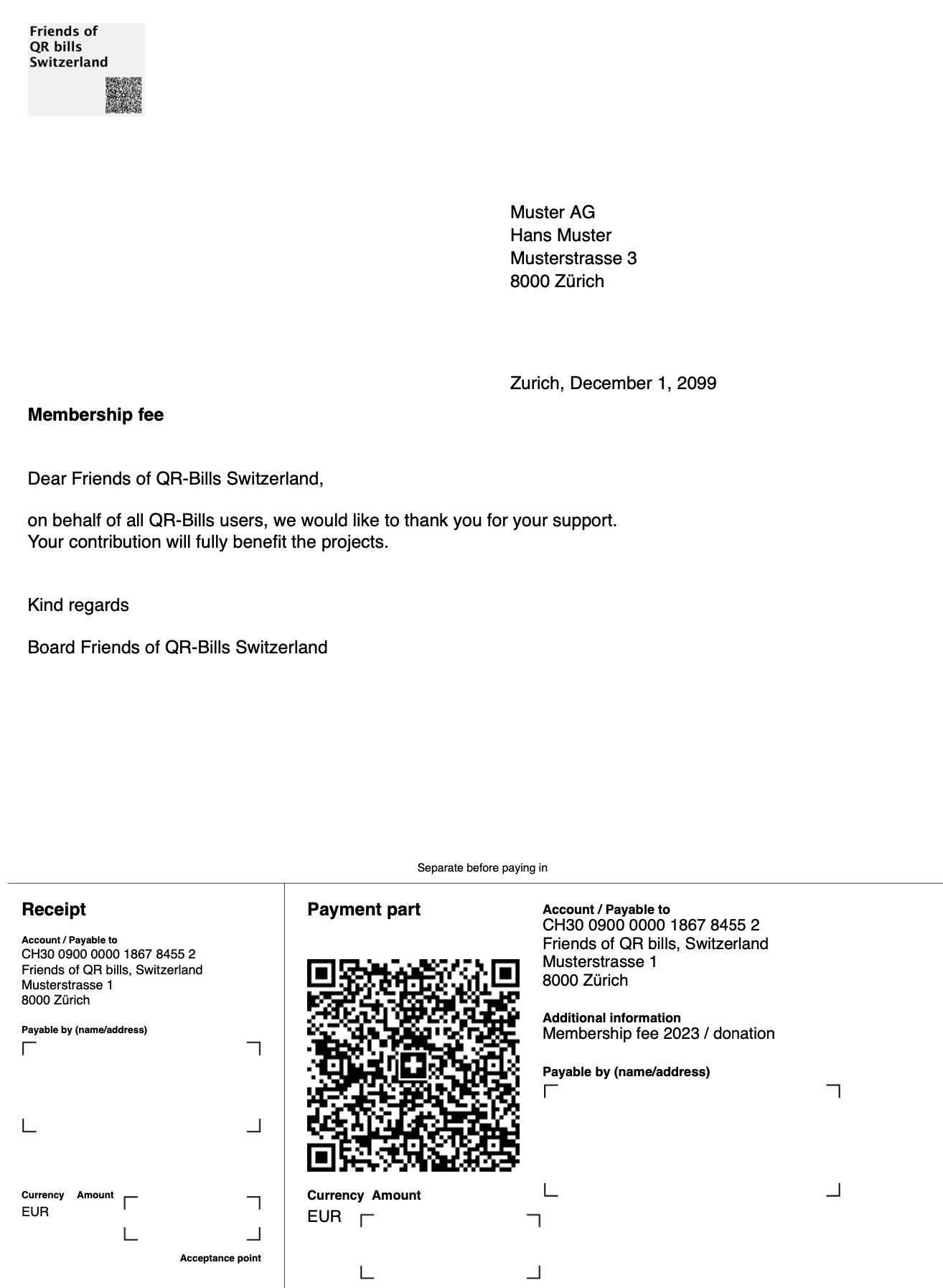
The protocol file qr-bills-protocol.csv in the sub folder with the current date/time in the output folder looks like the one in B.1 - QR bill without debtor and amount.
Configure the QR bill processor as follows:
Currency: CHFPrint amount: Amount (between 0.00 and 500.00):: 250.00Print 'UltimateDebtor': noAppend reference: yesSend e-mail: yesTest e-mail: as you like, may be left empty, as it may be overriden later onSleep after send: according to your hosterDefault language: GermanMulti-language support: yesAdditional language(s): EnglishDon't forget to press the button Save configuration!
Delete old input files by pressing Delete input files.
Upload the following input files:
PdfData.json: Upload file PdfData.json in directory C.2 - QR bill with amount and reference in 'AdditionalInformation'.PdfTemplate.pdf: Upload file PdfTemplate.pdf in directory C.2 - QR bill with amount and reference in 'AdditionalInformation'.PdfTemplate_en.pdf: Upload file PdfTemplate_en.pdf in directory C.2 - QR bill with amount and reference in 'AdditionalInformation'.CreditorInformation.json: Upload file CreditorInformation.json in directory C.2 - QR bill with amount and reference in 'AdditionalInformation'.AdditionalInformation.json: Upload file AdditionalInformation.json in directory C.2 - QR bill with amount and reference in 'AdditionalInformation'.MailData.json: Upload file MailData.json in directory C.2 - QR bill with amount and reference in 'AdditionalInformation'.MailBody.html: Upload file MailBody.html in directory C.2 - QR bill with amount and reference in 'AdditionalInformation'.MailBody_en.html: Upload file MailBody_en.html in directory C.2 - QR bill with amount and reference in 'AdditionalInformation'.Recipients.csv: Upload file Recipients.csv in directory C.2 - QR bill with amount and reference in 'AdditionalInformation'.These files are nearly the same as in C.1 - QR bill without debtor and amount, the only differences are the configuration and the PDF template (that contains an amount).
Pressing Dry run will show the same result as in B.1 - QR bill without debtor and amount.
Again, the warnings can be ignored, there is no multi-language support for it and fr; these recipients will receive the e-mail and the PDF in the default language German.
Pressing Test run (to your address) will show the same result as in B.1 - QR bill without debtor and amount.
And the e-mail you have received, is the same as in A.1 - Simple e-mail mass mailing.
Pressing Execute will send the mail to all the e-mail addresses in Recipients.csv. The configuration Sleep after send defines how fast the e-mails are sent.
Remark: For the first trials, configure Send e-mail to no and look into the ZIP archive whether the created PDF files are like you expect them.
The result will look the same as in B.1 - QR bill without debtor and amount. (Again, as the mail addresses to not exist, nobody receives an e-mail.)
The difference to C.1:
250.00.Amount / Betrag of the payment slip contains the amount 250.00.Additional Information / Zusätzliche Informationen of the payment slip contains a second line with the reference of the recipient entry.The PDFs created in the output folder look like this:
1 (no company, but salutation)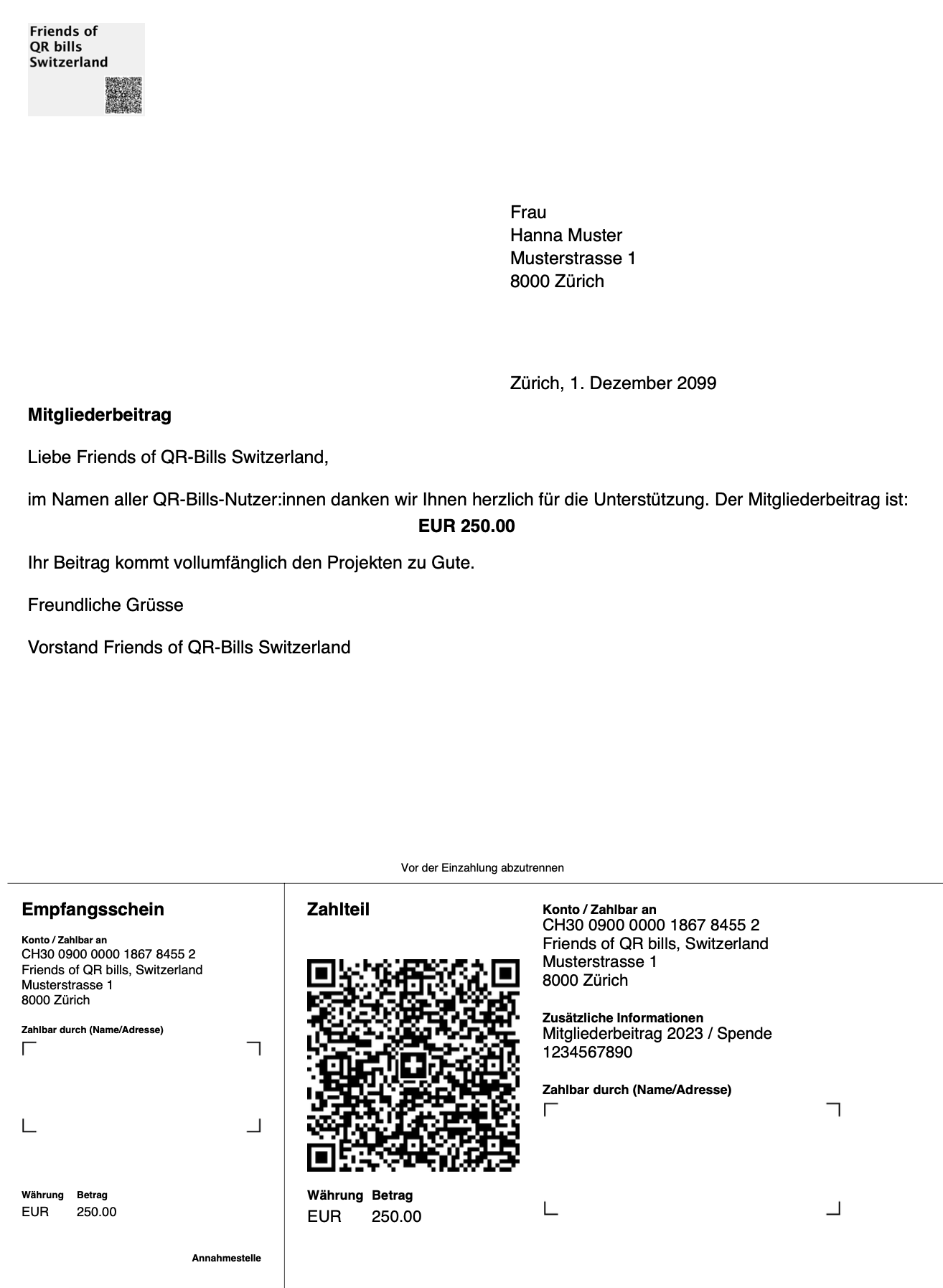
3 (company, no salutation)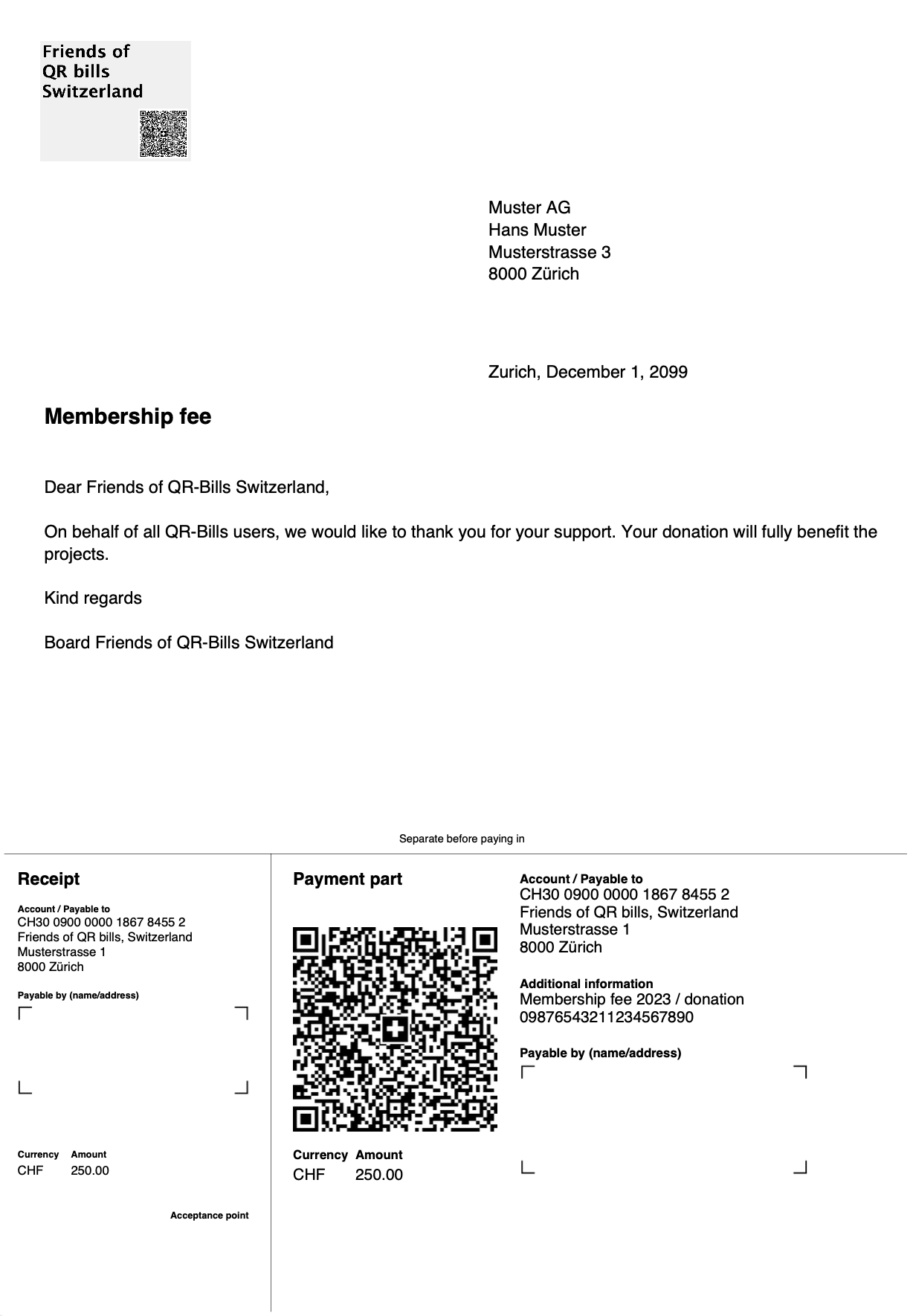
The protocol file qr-bills-protocol.csv in the sub folder with the current date/time in the output folder looks like the one in B.1 - QR bill without debtor and amount.
First, choose the selection PDF without payment slip.
Configure the QR bill processor as follows:
Currency: CHFPrint amount: Individual amount of recipient, amount may have any value, unusedSend e-mail: yesTest e-mail: as you like, may be left empty, as it may be overriden later onSleep after send: according to your hosterDefault language: GermanMulti-language support: yesAdditional language(s): EnglishDon't forget to press the button Save configuration!
Delete old input files by pressing Delete input files.
Upload the following input files:
PdfData.json: Upload file PdfData.json in directory D.1 - Personalized attached PDF.PdfTemplate.pdf: Upload file PdfTemplate.pdf in directory D.1 - Personalized attached PDF.PdfTemplate_en.pdf: Upload file PdfTemplate_en.pdf in directory D.1 - Personalized attached PDF.MailData.json: Upload file MailData.json in directory D.1 - Personalized attached PDF.MailBody.html: Upload file MailBody.html in directory D.1 - Personalized attached PDF.MailBody_en.html: Upload file MailBody_en.html in directory D.1 - Personalized attached PDF.Recipients.csv: Upload file Recipients.csv in directory D.1 - Personalized attached PDF.Pressing Dry run will show the same result as in B.1 - QR bill without debtor and amount.
Again, the warnings can be ignored, there is no multi-language support for it and fr; these recipients will receive the e-mail and the PDF in the default language German.
Pressing Test run (to your address) will show the same result as in B.1 - QR bill without debtor and amount.
And the e-mail you have received, is the same as in A.1 - Simple e-mail mass mailing.
Pressing Execute will send the mail to all the e-mail addresses in Recipients.csv. The configuration Sleep after send defines how fast the e-mails are sent.
Remark: For the first trials, configure Send e-mail to no and look into the ZIP archive whether the created PDF files are like you expect them.
The result will look the same as in B.1 - QR bill without debtor and amount. (Again, as the mail addresses to not exist, nobody receives an e-mail.)
The PDFs created in the output folder look like this:
1 (no company, but salutation)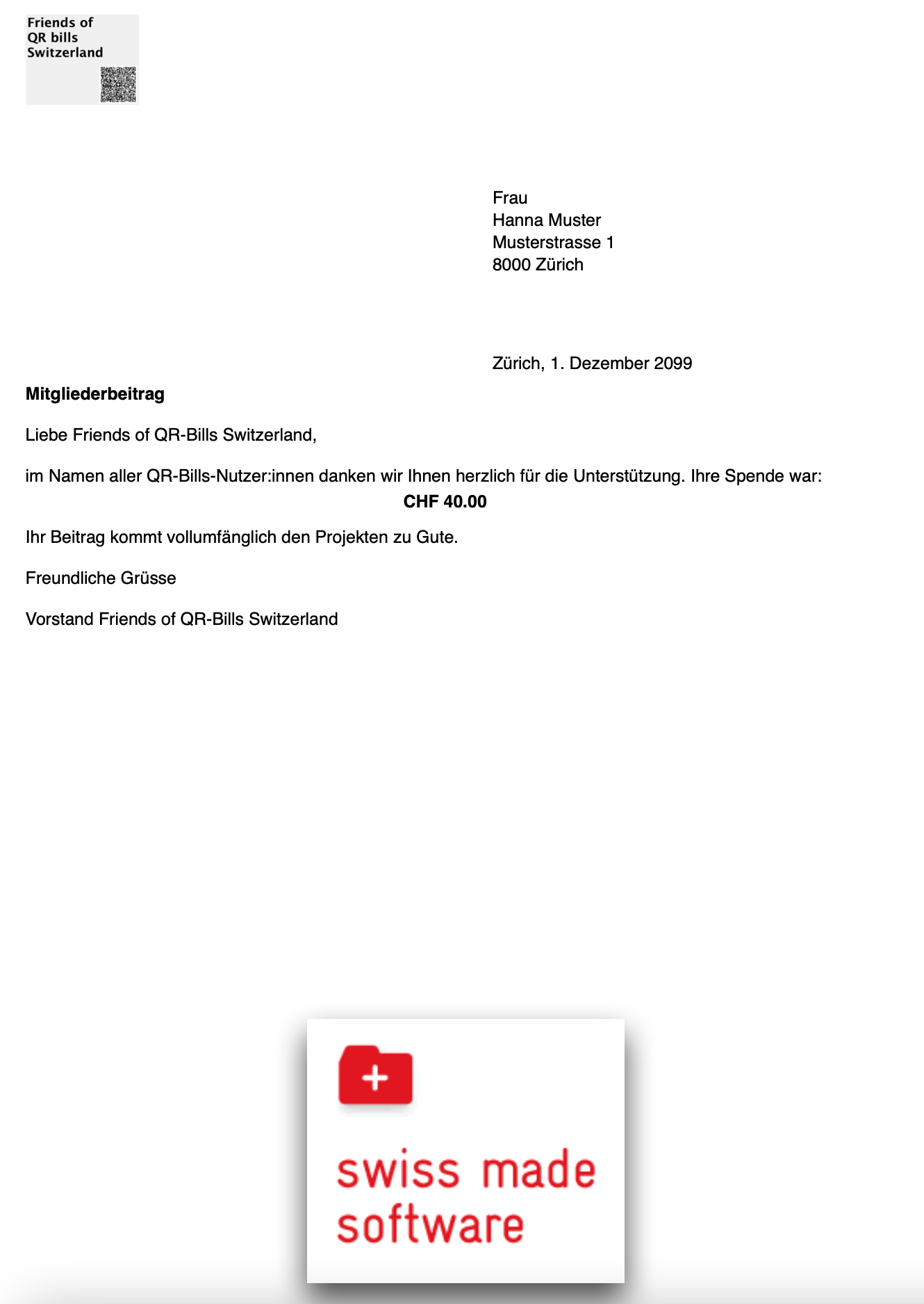
3 (company, no salutation)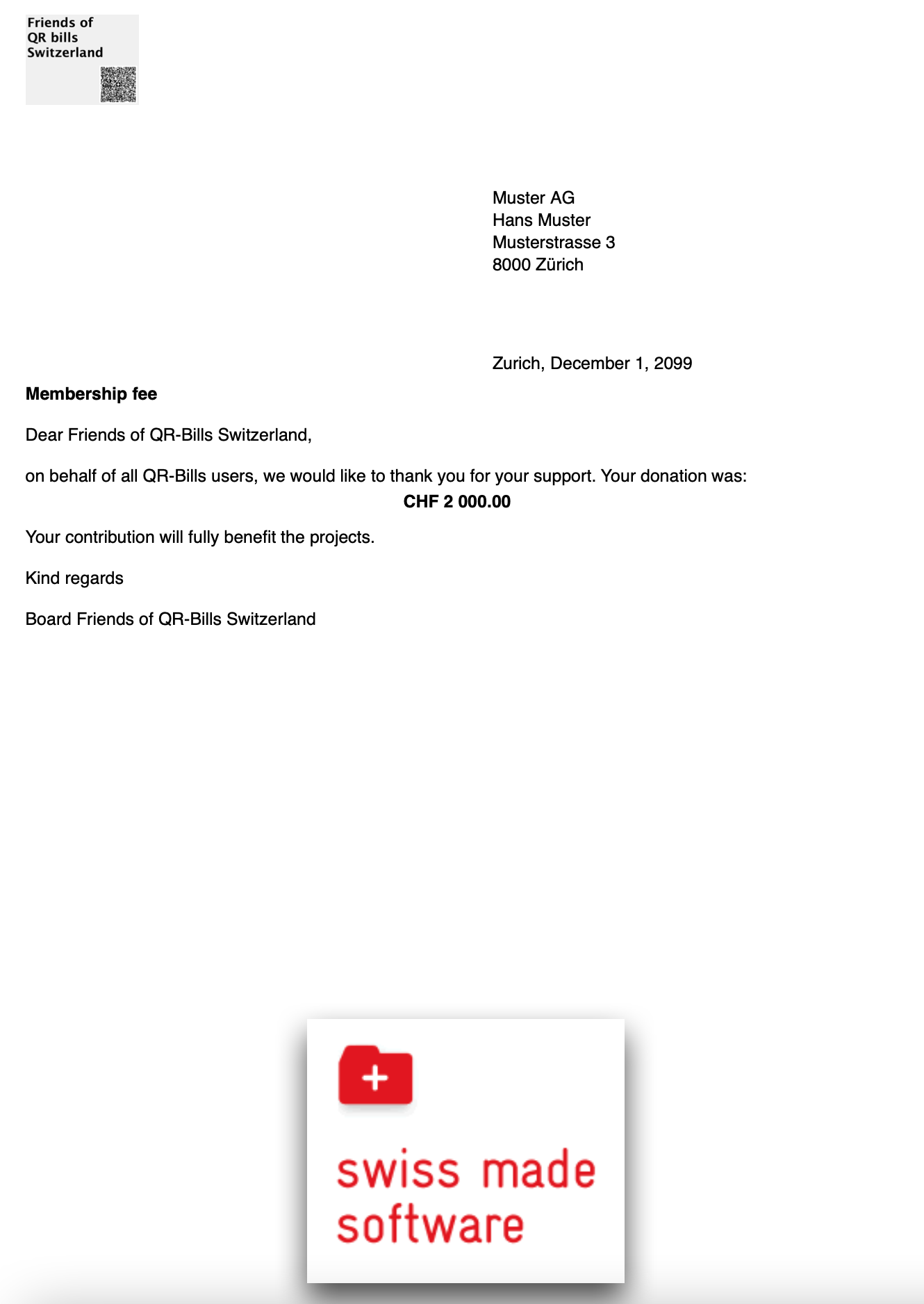
The protocol file qr-bills-protocol.csv in the sub folder with the current date/time in the output folder looks like the one in B.1 - QR bill without debtor and amount.