READ ME
This simple tool called QR bill processor is designed to create QR bills for bulk mailing and optionally send them via email right away. It supports payment slips with QR IBAN (formerly the orange payment slips) and payment slips with bank IBAN (formerly the red payment slips).
A QR-IBAN is a special IBAN that must be requested from the bank or PostFinance, respectively, and enables a reference number to be entered in a separate field, which is automatically read from the payment data depending on the accounting software used (if any).
For the bank IBAN, the reference number can optionally be entered in the "Additional information" field; however, this text field is unstructured and therefore typically cannot be processed automatically.
Additionally, this tool may also be used as simple bulk mailer without generating QR bills (see examples).
At the moment, this tool is not multi-user capable! When several people use the tool at the same time, funny things may happen. There are some guards that should prevent that several clients change the data of a profile at the same time, but: You have been warned!
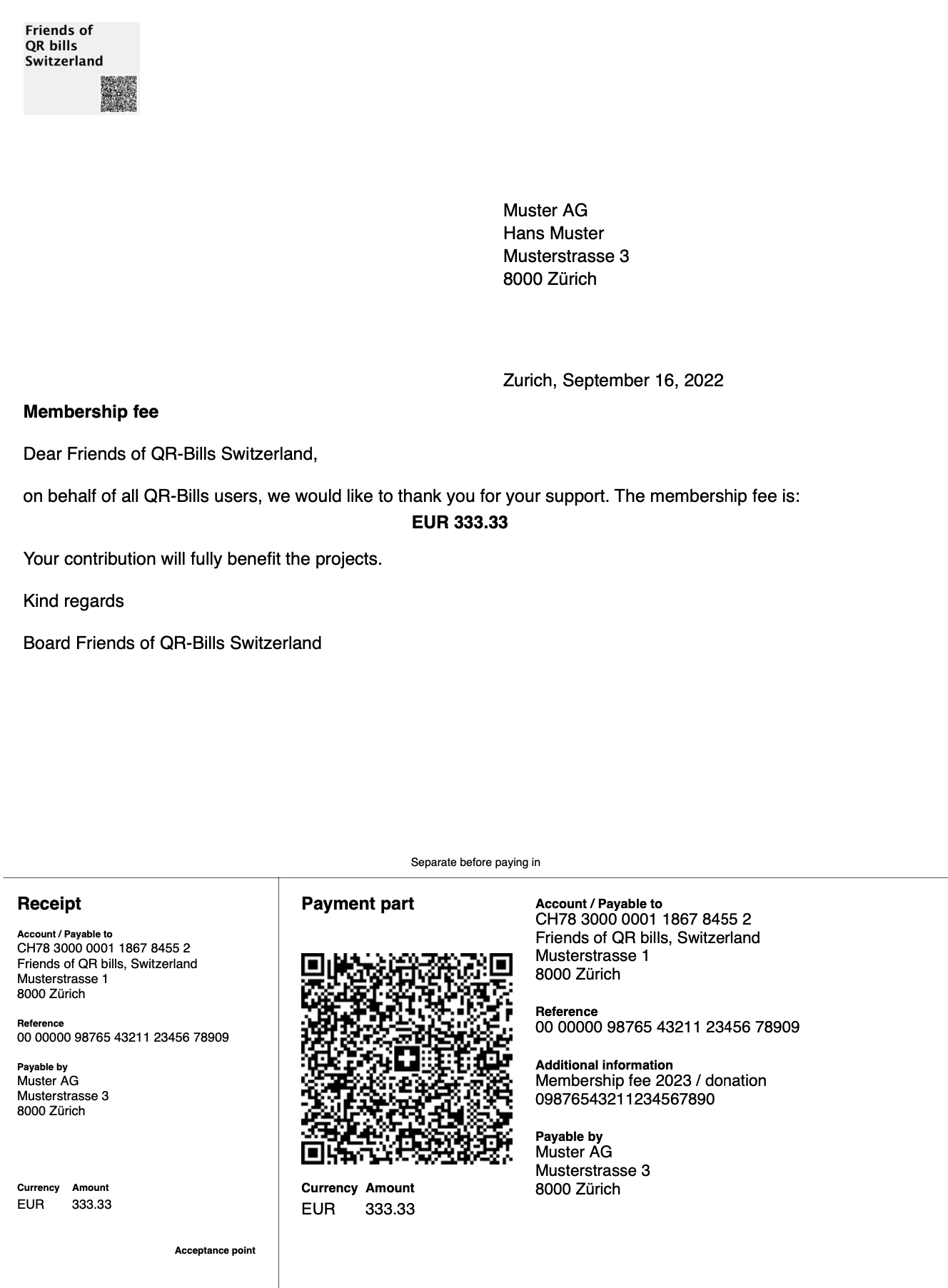
Example for a QR bill containing a payment slip with a QR-IBAN:
The documentation in the docs/ directory describes the technical aspects of the QR bill processor, especially the file formats. The docs/ directory contains as well a HOWTO document, which describes how the example web pages may be customized, and a document README Error Handling that may help to solve some problems.
The directory examples/ contains examples of different input files for the QR bills processor and the accompanying documentation describing how the various input files interact to achieve a particular type of application.
The QR codes created by the examples have been validated by the Swiss QR-bill Validation.Portal. (You need a registration to access this portal.)
Remark: It helps to read through these documentations in its entirety at least once. :-)
This tool itself has no no usage restrictions and is based mainly on the components swiss-qr-bill (permissive license: there is no usage restriction), FPDI (permissive MIT license: there is no usage restriction), PHPmailer (GNU Lesser General Public License v2.1) and Translations (permissive license: there is no usage restriction). Before you use the software, pay attention to the licenses of the software and the included components.
The delivered ZIP file (qr-bills-x.y.zip, where x.y is the version) contains:
| File / Directory | Description |
|---|---|
assets/ |
pictures and other stuff referenced by documentation |
cfg/ |
configuration for this tool |
composer.json |
configuration for the composer tool |
css/ |
CSS files for the example web page |
docs/ |
technical documentation, especially file formats |
examples/ |
example input data files for this tool with accompanying documentation |
index.php |
example web page to execute this tool |
js/ |
JavaScript code for the example web page |
LICENSE |
license |
QrBillsConfigurationSelection.php |
configuration selection form |
QrBillsDelete.php |
delete form and handling thereof |
QrBillsProcessAsync.php |
handles actions "dryRun", "testRun" or "processRun" in QrBillsProcess.js |
QrBillsProcessStatus.php |
target for POST action "getStatus" in QrBillsProcess.js |
QrBillsProfileSelection.php |
profile selection form and handling thereof |
QrBillsSaveCfg.php |
handles action "saveQrBillsConfiguration" in QrBillsConfigurationSelection.php and QrBillsUseCaseSelection.php |
QrBillsUpload.php |
target for file upload POST actions in QrBillsUploadForm.php |
QrBillsUploadForm.php |
upload form for one file |
QrBillsUseCaseSelection.php |
use case selection forms |
README.html |
this file in HTML format |
README.md |
this file in MarkDown format |
src/ |
PHP code for this tool |
tests/ |
PHPUnit test cases for this tool |
translations/ |
translation files |
vendor/ |
used tools and libraries managed by the composer tool (BIG: around 90MB) |
Unzip the ZIP file and copy the files and folders to your web server, either in a sub directory or into root. (But pay attention to remark IMPORTANT 3.)
IMPORTANT 1: The QR bill processor (or more precisely the libraries it depends on) need at runtime at least PHP version 8.2 to be installed on the web server.
IMPORTANT 2: You should protect the installation folder with a password, otherwise possibly everybody can use the QR bill processor and send e-mails, spamming the whole world using your sender address!
IMPORTANT 3: The delivered ZIP file contains PHPUnit! Deinstall PHPUnit before you install the vendor directory on the web server (see also remark in READ ME Unit tests) or use the distribution ZIP file (qr-bills-x.y-distribution.zip), where PHPUnit (and all tests) have already been removed.
Point your browser to the address where the example web page named index.php is located (where you have installed the software).
https://{your domain}[/optional sub directory]/index.phpThe web page displays on the top the profile selection:

Current profile allows to change between different profiles (different settings of configuration and input files, see below). Initially, there is only one profile named Default. After you have chosen another profile in the combo box, you have to click on the button Change to activate the selected profile.New profile allows to enter any name for a new profile. As the profiles may be implemented as sub directories on the hosting machine, you should stick here to names that are allowed as a directory name on the hosting machine. Therefore, it's probably wise to not use spaces, umlauts or other special characters in the name! After you have typed in a new name, you have to click on the button Create to create a new profile with a configuration setup with default values and no input files loaded.Default profile). Selecting one and pressing Delete will immediately delete the selected profile without any warning, so pay attention!All the changes you make in the following sections 1. Configure settings and 2. Upload input files are stored into the currently selected profile.
Next, the web page displays the three available use cases:

QR bill PDF with payment slip
The main goal of this tool: Create PDFs containing a QR bill payment slip and optionally send them via e-mail.createPdf and printPaymentSlip.PDF without payment slipcreatePdf.HTML mail without PDFsendMail.For each of these use cases, the web page shows three sections:
Configure settings: Configure detail settings.Upload input files: Upload the needed input files.Execute: Test and finally execute the process.The sections 2. and 3. will change according to the chosen use case and the chosen settings.
Therefore, first select one of the use cases then configure the details. Now, upload the input files; they are checked against the chosen use case and the chosen configuration settings. Finally, you should first make some test runs to see if the result meets your expectations and second you may execute the QR bill processor. Have fun!
As this use case contains the other two use cases, this section will explain all the options. The sections describing the other use cases just mentions some specialities for that use case.
This section may look like this:
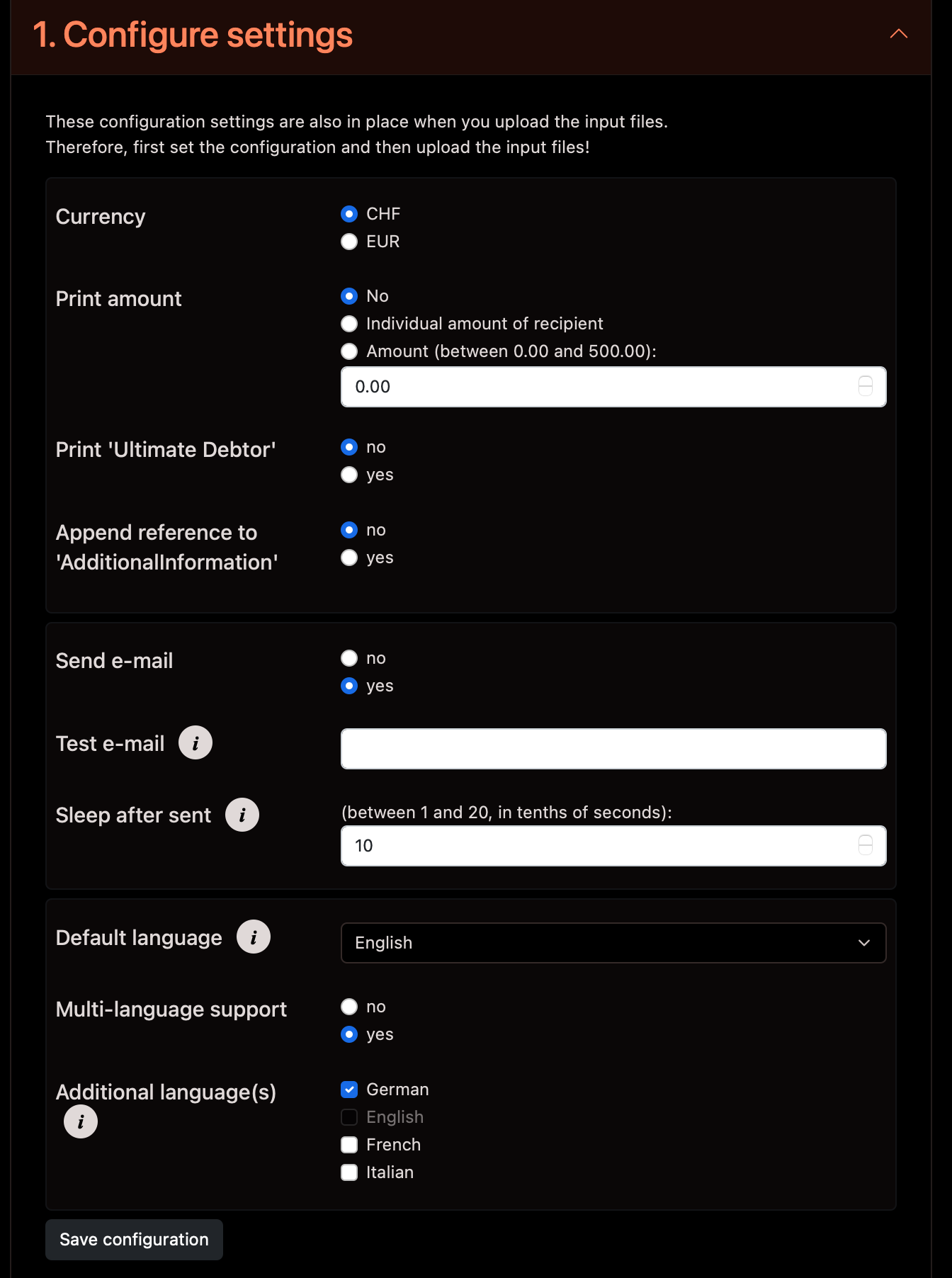
This section contains the following configuration items:
| Title | Name of the option | Description | Range | Example |
|---|---|---|---|---|
Currency |
currency |
Print the selected currency CHF or EUR on the payment slip. |
CHF or EUR |
CHF |
Print amount |
printAmount |
Depending on the selection No, Individual amount of recipient or Amount either no amount (an empty amount field), the individual amount contained in the recipient's entry, or the global amount entered here is printed. |
No, Individual amount of recipient or Amount |
Amount |
amount |
Amount to be printed onto the payment slip if amount selection is Amount |
0.00..500.00 |
100.00 |
|
Print 'UltimateDebtor' |
addDebtor |
Print the field 'UltimateDebtor' ('Zahlbar durch') in the QR bill using the data found in the recipient. | yes or no |
yes |
Append reference to 'Additional information' |
addRefToAddInfo |
Append the reference (see Recipients.csv) usually printed in the payment reference of the payment slip ("Referenz") to the additional information of the payment slip ('Zusätzliche Informationen'), as well. | yes or no |
no |
Send e-mail |
sendMail |
Send the e-mail to recipient. (If no: only save PDFs to the output folder.) | yes or no |
no |
Test e-mail |
presetMail |
Predefine an e-mail address for test runs (see 3. Execution) | valid e-mail address | hans.muster@example.com |
Sleep after send |
sleepAfterSend |
Time to sleep in tenths of seconds after a mail has been sent | 1..20 |
10 (= 1 second) |
Default language |
defaultLanguage |
Default language used if recipient's language is not supported | One of German, French, Italian or English |
English |
Multi-language support |
multiLanguage |
Controls whether multi-language is activated | yes or no |
yes |
Additional language(s) |
additionalLanguages |
Additional languages to default language (only shown if multiLanguage is yes, the chosen default language is not selectable) |
One of German, French, Italian or English |
German |
These configuration items are saved by pressing the button Save configuration. If you have changed Multi-language support from no to yes, you must first save the configuration before you can see the option Additional language(s).
Remarks:
Print amount is Individual amount of recipient then the recipient entries are tested whether they have a valid amount.This section may look like this:
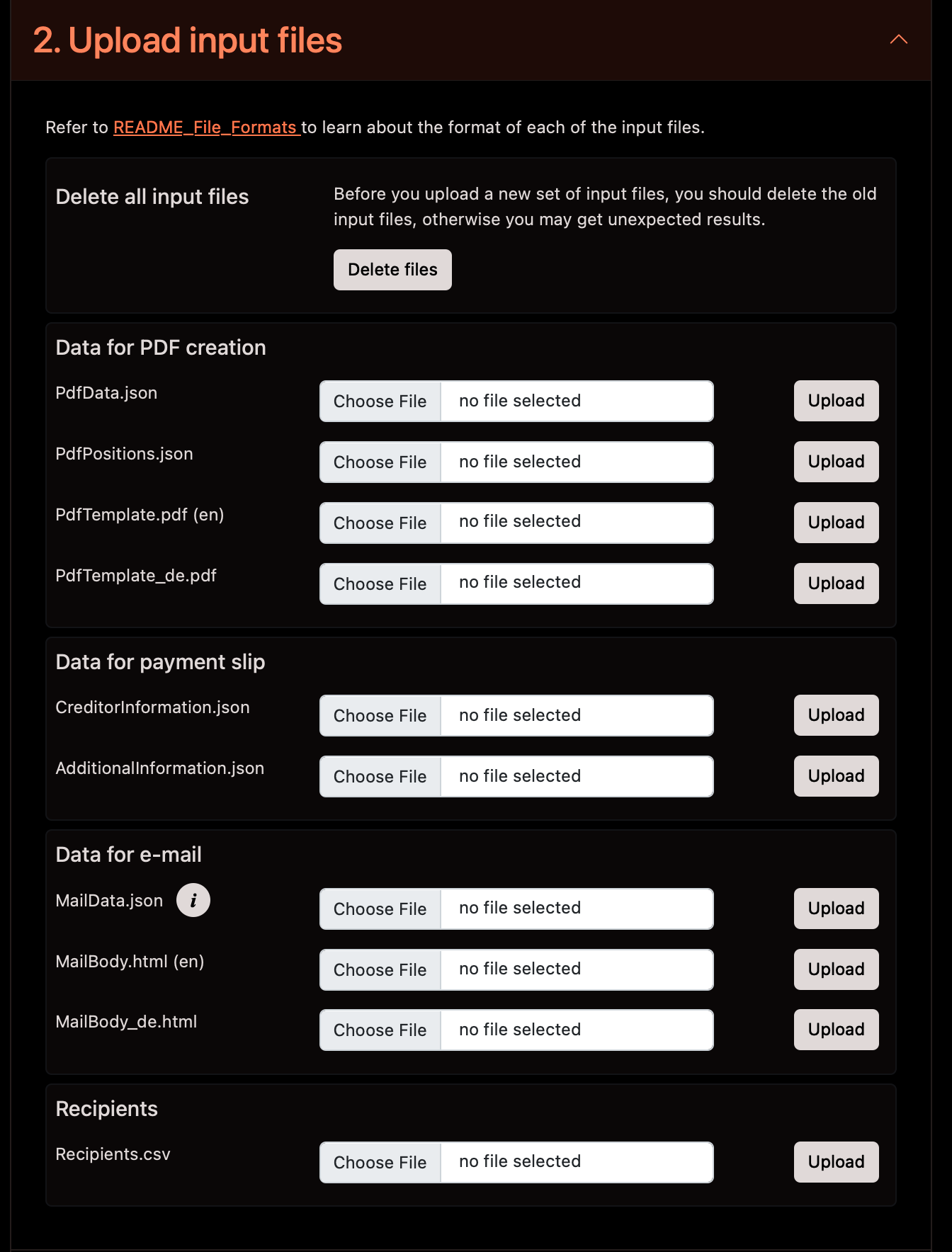
This section allows:
Delete all the input files by pressing the button Delete files; recommended before uploading a new set of input files to get rid of the old input files.
You will see the result in a status field below this section.
Upload every input file needed by the QR bill processor: Just press the button Choose File (or however this is called in your preferred browser) to select a file and then press the button Upload beside the file name to upload the file.
You will see the result in the status field at the beginning of this section (the web page scrolls to this status field automatically).
The use case QR bill PDF with payment slip will ask you for the following input files:
PdfData.jsonPdfPositions.jsonPdfTemplate.pdf (XX), where XX is the shortcut of the chosen default language ((XX) is not shown when configuration option Multi-language support is no)PdfTemplate_YY.pdf, where YY is the shortcut of a chosen additional language, repeated for every chosen additional language (not shown when configuration option Multi-language support is no)CreditorInformation.jsonAdditionalInformation.json (optional input file)MailData.jsonMailBody.html (XX), where XX is the shortcut of the chosen default language ((XX) is not shown when configuration option Multi-language support is no)MailBody_YY.html, where YY is the shortcut of a chosen additional language, repeated for every chosen additional language (not shown when configuration option Multi-language support is no)Refer to the documentation of the input files for more details regarding structure and contents of the input files.
After deleting input files, in case all went well, you will see a message like this:
Input files successfully deleted or no files to delete.After a file upload, in case all went well, you will see a message like this:
The file has been successfully uploaded.Or in case of an error, for example after uploading the input file MailData.json you may get:
**Additional language is missing in given texts** subject, de
FILE HAS NOT BEEN UPLOADED!
Remark: The text Additional language is missing in given texts surrounded by two asterisks (*) is printed in bold face.
This means that the input file does not contain a text for the field subject in the additional language German, but the configuration has Multi-language support set to yes and Additional language(s) contains German.
After you have succesfully uploaded all required input files (the optional input file AdditionalInformation.json was not uploaded in this case), the section will look somehow as follows:
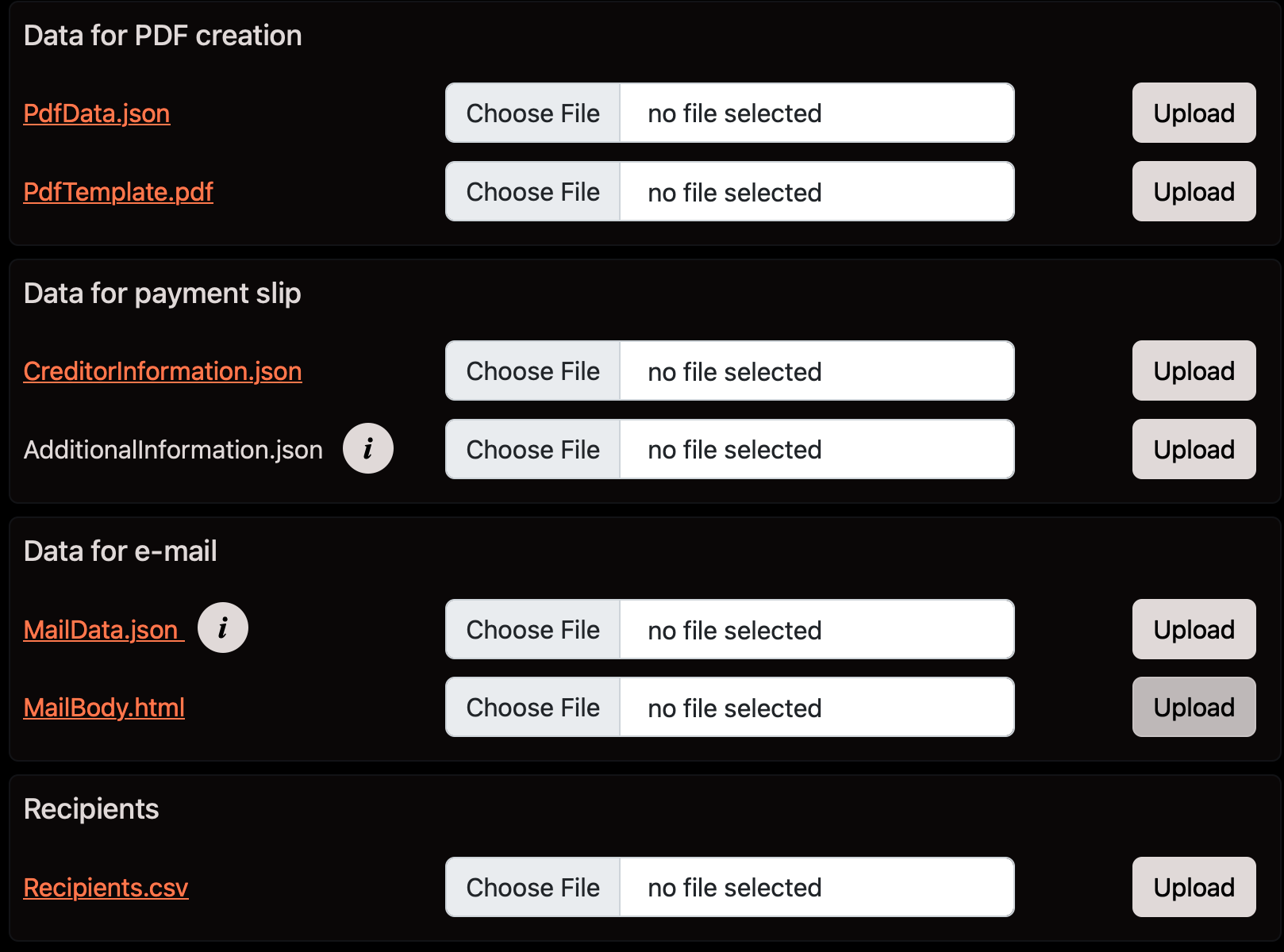
The underlined name of a input file (like PdfData.json) indicates that the input file has been uploaded and provides a download link for the uploaded file. Clicking on such a link, downloads the input file to your client machine, which allows you to control the contents of the uploaded file.
This section may look like this:
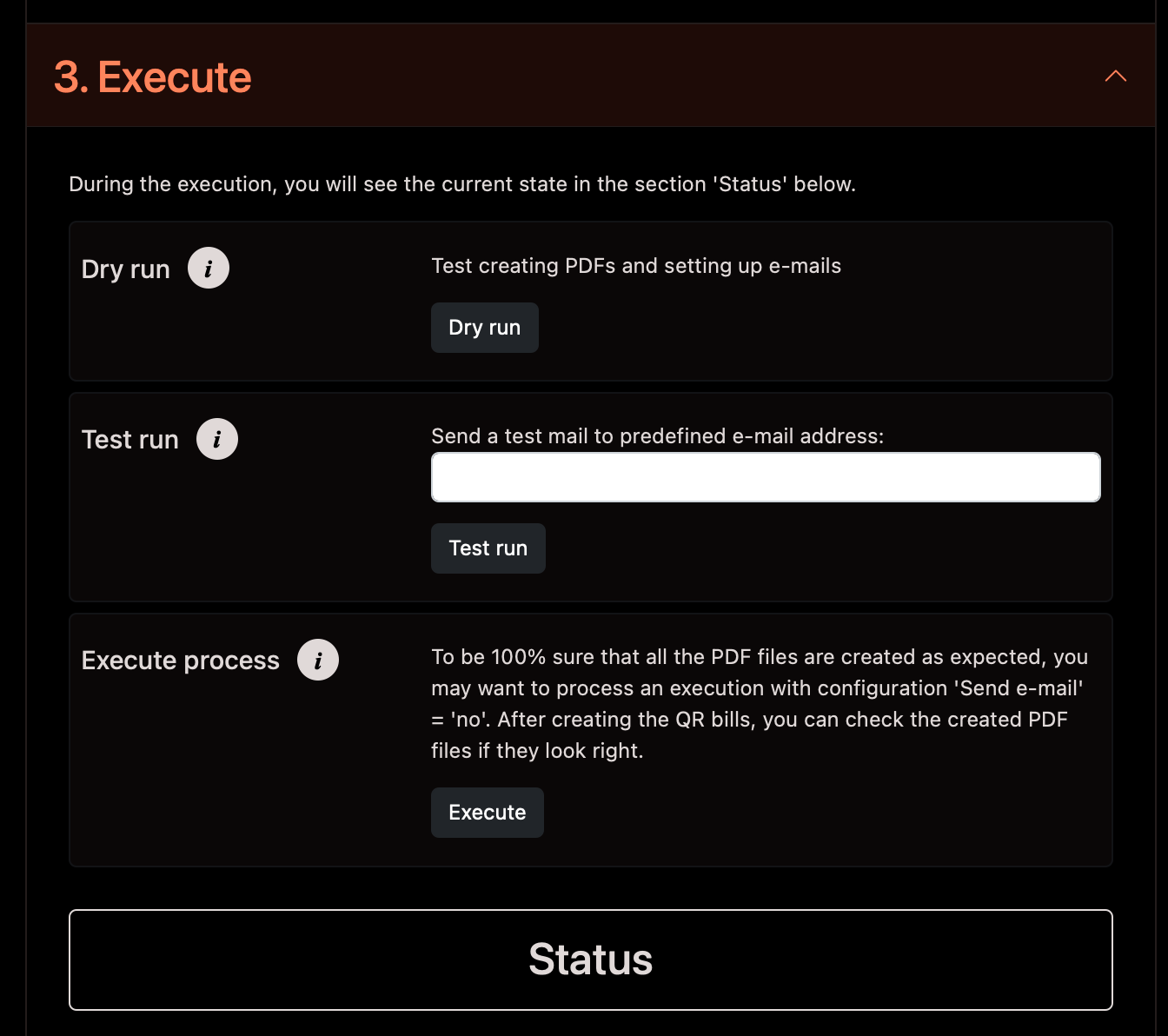
A dry run will create all the PDFs in memory and setup the e-mail, so every possible action (including validation of the prepared data by 3rd party libraries) is done, but a dry run will not write the created PDFs into files on disk and will not send the prepared e-mails. A dry run of the QR bill processor is started by pressing the button Dry run.
The dry run will check whether all needed input files have been uploaded. If not, a warning like this is issued:
Missing input file for some language [SERVER_PATH]/[INSTALLATION_PATH]/data/[PROFILE_NAME]/input/MailBody.html, de, whereby [SERVER_PATH] is the location of the file in the file system on your web server, [INSTALLATION_PATH] the path where you have installed QrBills and [PROFILE_NAME] the name of the current profile.
This message means that the file MailBody.html does not exist for the additional language German, so you forgot to upload the file for MailBody_de.html.
During a dry run, the input files are additionally checked whether they contain text in every language some recipient has. This warning has the following format:
Warning: Recipient '{index}' has language '{language}' and the following input data does not contain values for this language:
{file1}[: {key1}[ {key2} [.. {keyN}]]]; [{file2}[: {key1}[ {key2} [.. {keyN}]]]; [.. [fileN][: {key1}[ {key2} [.. {keyN}]]]]];
whereby:
| Name | Description |
|---|---|
{index} |
index into the recipients CSV (starting at 0) |
{language} |
language that misses a localization |
{file1}, {file2}, {fileN} |
names of the files that miss some localization |
{key1}, {key2}, {keyN} |
names of the fields that miss localization (if the file has keys at all, see special cases MailBody.html and PdfTemplate.pdf) |
In these cases just a warning is printed, but the DryRun is not stopped. (Processing will take the default language for these items with missing appropriate language.)
Warning: Recipient '1' has language 'de' and the following input data does not contain values for this language:
MailData.json: subject attachmentName
MailBody_de.html
In this example, the fields subject and attachmentName in the file MailData.json miss a text for the language de (German) and (special case), the MailBody misses a localization for the language de (in this special case, the file MailBody_de.html is missing).
A test run starts the QR bill processing with a recipient list that has only one example entry (see RecipientsTestRun.csv). The example web pages requires to enter an e-mail address, which is preset with the configured e-mail address (field Test e-mail in section 1. Configuration). This e-mail address is dynamically inserted into the only entry of the special recipient list. Therefore, the QR bill processing will send only one mail to the entered e-mail address (hopefully yours). A test run of the QR bill processor is started by pressing the button Test run.
Attention: If you enter a formally valid, but non-existing e-mail address, the mail server cannot deliver the mail and sends an error report to the e-mail address defined by the field fromAddress in the input file MailData.json.
The QR bill processor is started by pressing the button Execute.
To ensure that no security mechanism will stop the processing, the QR bill processor will send only one mail per a configurable time (see sleepAfterSend in 1. Configuration). Therefore be patient if you have many recipients!
The status field at the end of this section continuously shows the progress of the execution (the web page scrolls to this status field automatically).
[ {profile} ] Number of recipients to process: 1
#1.a) PDF for 'Sabatini Sandro' created.
#1.b) Mail has been sent successfully to: saba@saba.ch
[ {profile} ] CONGRATULATIONS: All recipients successfully processed!
Download  _protocol file_.
Download _ZIP archive_.
Remarks:
{profile} contains the name of the current profile.protocol file and ZIP archive surrounded by an underline (_) are printed underlined.whereby:
# sign is the index into the current Recipients.csv, a) stands for the PDF creation phase (the text shows the name of the recipient), b) for the e-mail sending phase (the text shows the e-mail address of the recipient).After the text "CONGRATULATIONS: All recepients successfully processed!", two download links are provided:
If some input is invalid (or something else unforeseen happens) then an error message is printed here and the processing stops.
Example:
**Invalid amount (< 0)** 1, Amount, -1
Download  _protocol file_.
Download _ZIP archive_.
Remarks: The text Invalid amount (< 0) surrounded by two asterisks (*) is printed in bold face. The texts protocol file and ZIP archive surrounded by an underline (_) are printed underlined.
The text in bold face (here Invalid amount (< 0)) hopefully explains the reason for the error.
The following items point to the location where the error has happened, here the index of the recipient (1), the name of the field (Amount) and the contents of the field (-1).
If the text in bold face reads UNEXPECTED ERROR: then you have been trapped by a software error (an unforeseen condition). In this case, the error has typically nothing to do with invalid data you have uploaded, but something in your installation is not compatible with the software.
As some errors may occur after some recipients have already received a mail (in case you send mails), you should remove the already processed entries from the input file recipients.csv (consult the protocol file to detect the already processed entries) and upload this changed file before you start another processing.
The options Print 'Ultimate Debtor' and Append reference to 'AdditionalInformation' are not shown as they are only useful when a payment slip is printed.
The possibilities to upload the input files that contain data for the payment slip (CreditorInformation.json and AdditionalInformation.json) are not shown.
Same possibilties as for use case QR bill PDF with payment slip.
The options Currency, Print amount, Print 'Ultimate Debtor' and Append reference to 'AdditionalInformation' are not shown as they are only useful when a PDF with payment slip is created.
The possibilities to upload the input files that contain data for the PDF creation (PdfData.json, PdfPositions.json and PdfTemplate.pdf) or data for the payment slip (CreditorInformation.json and AdditionalInformation.json) are not shown.
Same possibilties as for use case QR bill PDF with payment slip.
The status shows that no PDF files are created:
[ {profile} ] Number of recipients to process: 1
#1.a) Creating PDF suppressed by global flag 'createPdf'.
#1.b) Mail has been sent successfully to: saba@saba.ch
[ {profile} ] CONGRATULATIONS: All recipients successfully processed!
Download  _protocol file_.
Remarks:
{profile} contains the name of the current profile.protocol file surrounded by an underline (_) is printed underlined.